Bash Scripting Fundamentals (original) (raw)
Last Updated : 7 May, 2026
Bash scripting is the process of writing a sequence of commands in a file and executing them together to perform tasks automatically. Instead of running commands one by one in the terminal, a script allows you to execute them in a single step.
- Automates repetitive and time-consuming tasks.
- Executes multiple commands in a single run.
- Saves time and reduces manual effort.
- Helps manage system operations efficiently.
- Makes workflows consistent and repeatable.
Writing Your First Bash Script
A Bash script is a simple text file containing commands that the shell can execute. Creating and running a script allows you to automate tasks instead of typing commands manually.
Step 1: Create a Script File
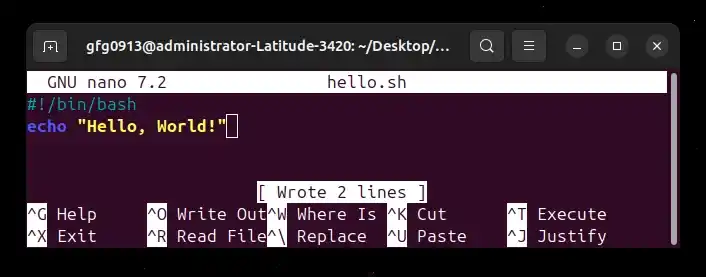
Open the terminal and create a file, this creates a file named hello.sh.
**Command:
nano hello.sh
Step 2: Add Script Code
Add the following lines to the file:
**Command:
#!/bin/bash
echo "Hello, World!"
- ****#!/bin/bash**: tells the system to use the Bash interpreter.
- **echo: prints text to the terminal.
Step 3: Save and Exit (Nano Editor)
After typing the code:
- **Press CTRL + O: save the file
- **Press Enter: confirm filename
- **Press CTRL + X: exit nano
Step 4: Make the Script Executable
By default, scripts do not have execute permission.
**Command:
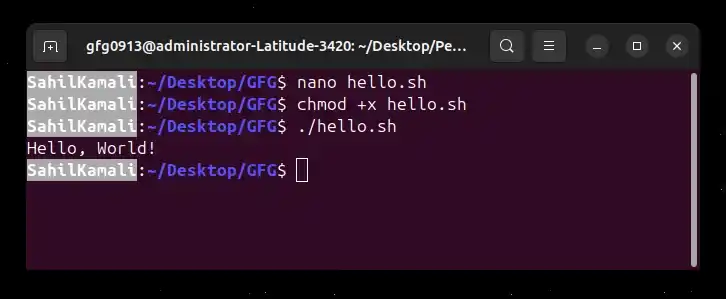
chmod +x hello.sh
- This command gives permission to run the script.
Step 5: Run the Script
Execute the script using
**Command:
./hello.sh
**Output:
Variables in bash
Variables in Bash are used to store data that can be reused throughout a script. They make scripts flexible and allow dynamic behavior based on stored values.
- Store text, numbers or other values.
- Declared using VariableName=Value format.
- Accessed using $VariableName.
**Example Script:
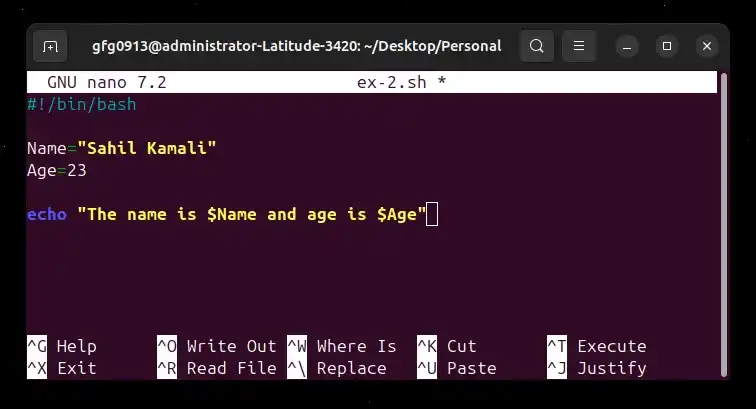
#!/bin/bash
Name="Sahil Kamali"
Age=23
echo "The name is NameandageisName and age is NameandageisAge"
- **Name="Sahil Kamali" and Age=23: Declare two variables.
- ****$Name and $Age:** Used to access their stored values.
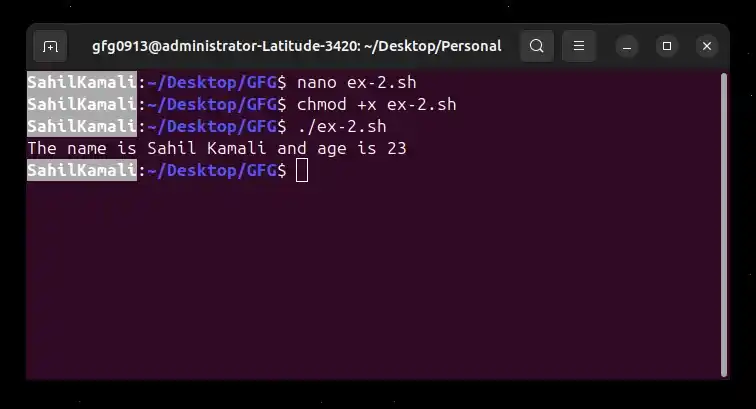
- **echo: Prints the values to the terminal.
**Output:
Global and Local Variables in Bash
In Bash scripting, variables can be global or local depending on where they are declared and where they can be accessed.
Global Variables
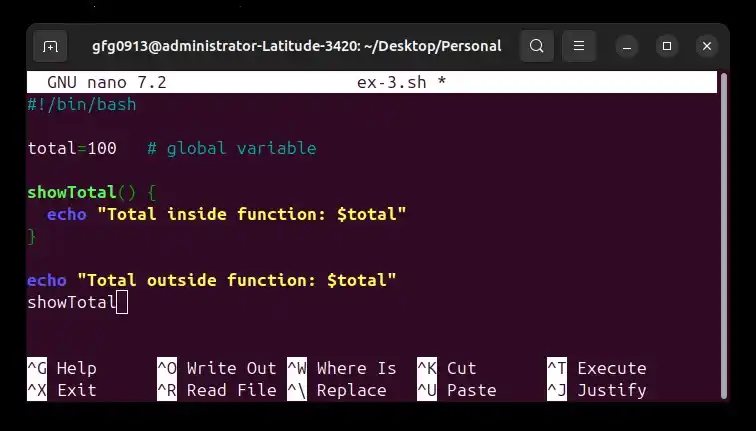
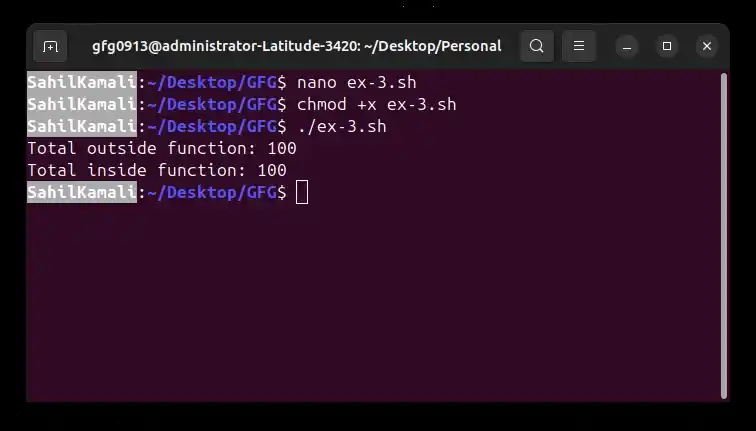
A global variable is declared outside any function and can be accessed anywhere in the script, including inside functions.
- Accessible throughout the script
- Can be used inside and outside functions
- Useful for sharing values between functions
**Example Script:
#!/bin/bash
total=100 # global variable
showTotal() {
echo "Total inside function: $total"
}
echo "Total outside function: $total"
showTotal
**Output:
Local Variables
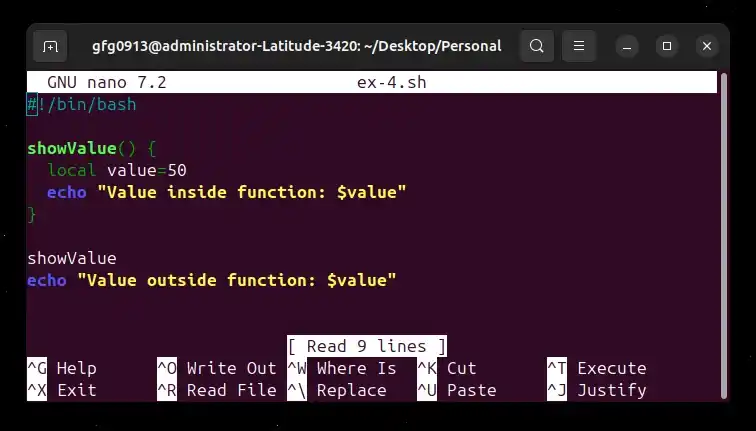
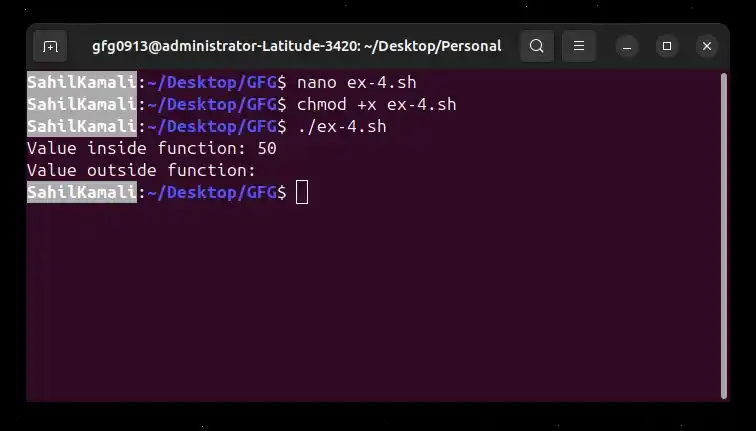
A local variable is declared inside a function using the local keyword and is only accessible within that function.
- Accessible only inside the function
- Prevents conflicts with variables outside the function
- Helps keep scripts organized
**Example:
#!/bin/bash
showValue() {
local value=50
echo "Value inside function: $value"
}
showValue
echo "Value outside function: $value"
**Output:
Decision Making in Bash
Decision making allows a Bash script to execute different blocks of code based on conditions. This helps scripts behave dynamically instead of running the same commands every time. Conditional statements are essential for automation, validation and logical operations in scripts.
- Executes commands based on conditions
- Helps validate user input
- Enables dynamic script behavior
- Supports multiple execution paths
- Improves script flexibility
1. If–Else Statement
The if statement evaluates a condition. If the condition is true, a block of code executes. Otherwise, an alternate block runs (if defined).
**Types of If Statements:
- if-fi
- if-else-fi
- if-elif-else-fi
- Nested if statements
**Example: Simple If–Else Script
#!/bin/bash
Age=17
if [ "$Age" -ge 18 ]; then
echo "You can vote"
else
echo "You cannot vote"
fi
- **Age=17: Stores value in a variable
- **[ "$Age" -ge 18 ]: Checks if Age is greater than or equal to 18
- **-ge: Numeric comparison operator (greater than or equal)
- **then: Executes if condition is true
- **else: Executes if condition is false
- **fi: Ends the if block
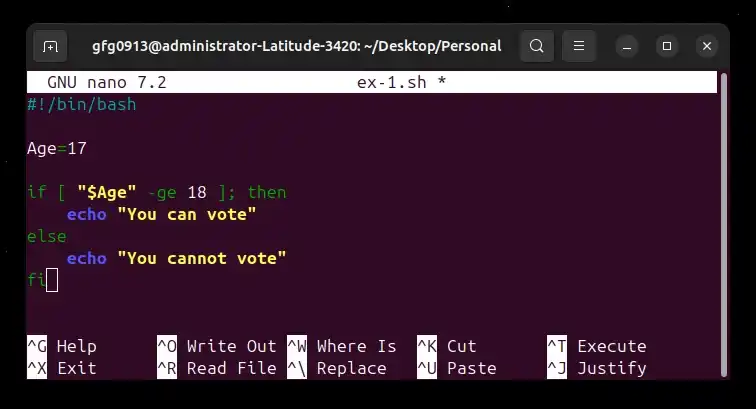
**Output:
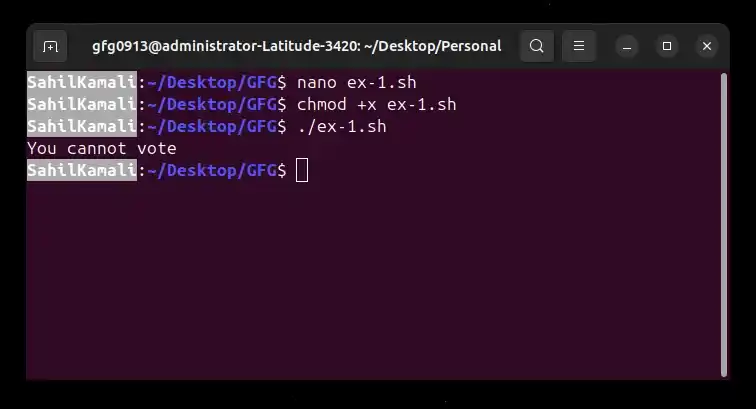
- Since 17 is less than 18, the condition is false and the else block executes.
2. Case Statement
The case statement is used when checking multiple possible values of a variable. It works similar to a switch statement in other programming languages. It is cleaner and more readable than multiple if conditions when handling many cases.
**Example: Case Statement Script
#!/bin/bash
Name="Sahil"
case "$Name" in
"Gulfam") echo "Profession : Software Engineer" ;;
"Sujal") echo "Profession : Web Developer" ;;
"Sahil") echo "Profession : Technical Content Writer Linux" ;;
esac
- **case "$Name" in: Starts case evaluation
- Each pattern is followed by )
- ****;;:** Ends a pattern block
- **esac: Ends the case statement
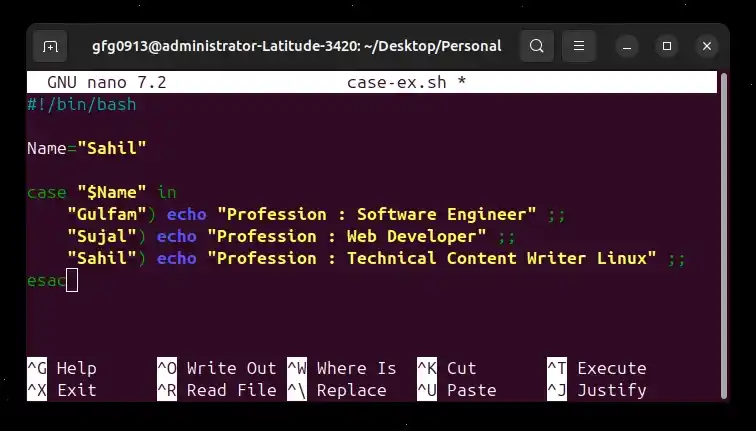
**Output:
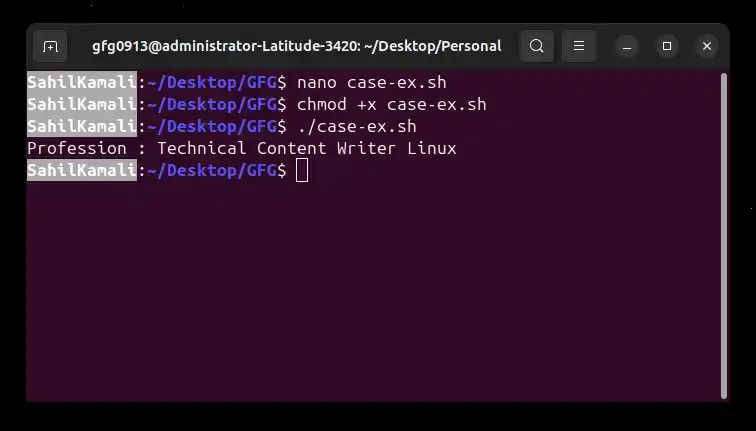
- The matching pattern executes and prints the corresponding message.
Input and Output in Bash
Input and Output (I/O) are fundamental concepts in Bash scripting. A script can accept input from users, files or other programs and produce output to the terminal or files. Understanding I/O helps in building interactive and automated scripts.
- Allows user interaction with scripts
- Enables reading data from files
- Supports writing output to files
- Helps handle errors properly
- Makes scripts dynamic and flexible
Taking User Input
Bash uses the read command to accept input from the user.
**Example: Reading Input and Handling Files
#!/bin/bash
echo "Enter filename"
read filename
if [ -e "$filename" ]
then
echo "$filename exists in the directory"
cat "$filename"
else
cat > "$filename"
echo "File created"
fi
- **echo "Enter filename": Displays a prompt
- **read filename: Stores user input in variable filename
- **-e: Checks if the file exists
- **cat "$filename": Displays file content
- **cat > "$filename": Redirects output to create/write file
- **>: Redirects standard output (stdout) to a file
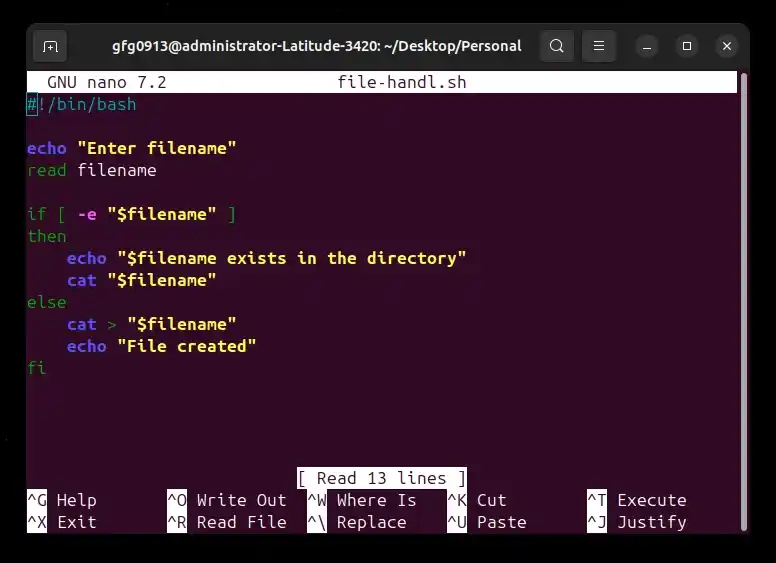
**Note: Quotes around "$filename" prevent errors if the filename contains spaces.
**First Execution Output (File Does Not Exist):
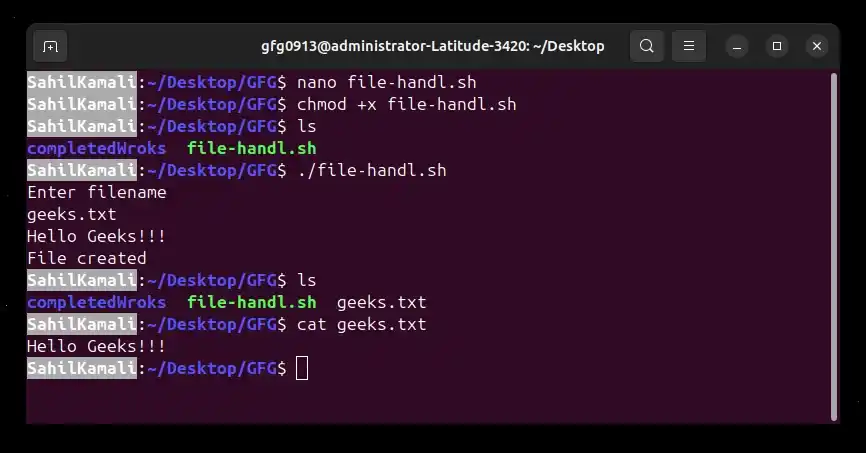
- File did not exist
- else block executed
- File was created and content was written
**Note:
- When cat > "$filename" executes, the terminal enters input mode.
- Type the content you want to write into the file.
- Press Enter to move to a new line.
- Press CTRL + D to save the file and exit input mode. The file is saved only after pressing CTRL + D.
- Press CTRL + C to cancel without saving.
**Second Execution Output (File Exists)
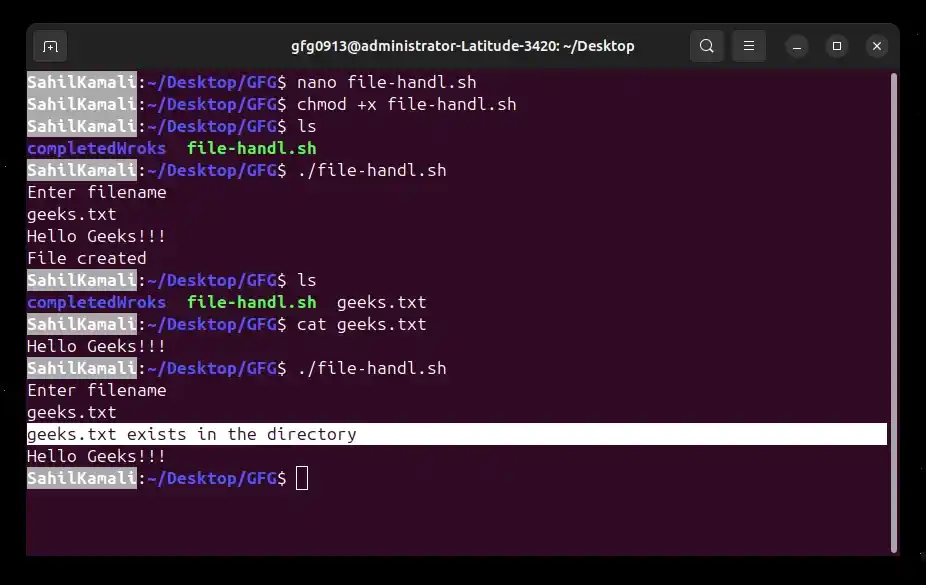
- File exists
- if block executed
- File content displayed
Output Redirection Operators
Bash allows redirecting output using special operators, these operators are useful for logging and error handling in automation scripts.
- **>: Redirect stdout to a file (overwrite)
- **>>: Redirect stdout (append)
- **2>: Redirect stderr (error messages)
- ****&>:** Redirect both stdout and stderr
Functions in Bash
A function in Bash is a reusable block of commands that performs a specific task. Instead of writing the same code multiple times, you can define it once and call it whenever needed. Functions improve script organization, readability and maintainability.
- Avoid repeating code
- Organize scripts into logical blocks
- Simplify debugging and maintenance
- Improve script readability
- Enable reusable logic
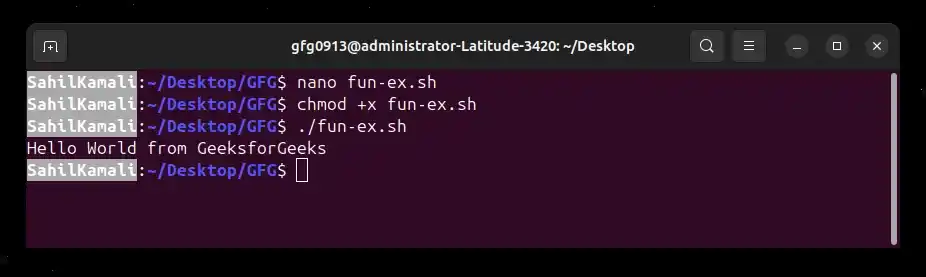
**Example:
#!/bin/bash
myFunction() {
echo "Hello World from GeeksforGeeks"
}
myFunction
- **myFunction(): Defines a function
- ****{ }:** Contains commands to execute
- **myFunction: Calls the function
- **echo: Prints the message
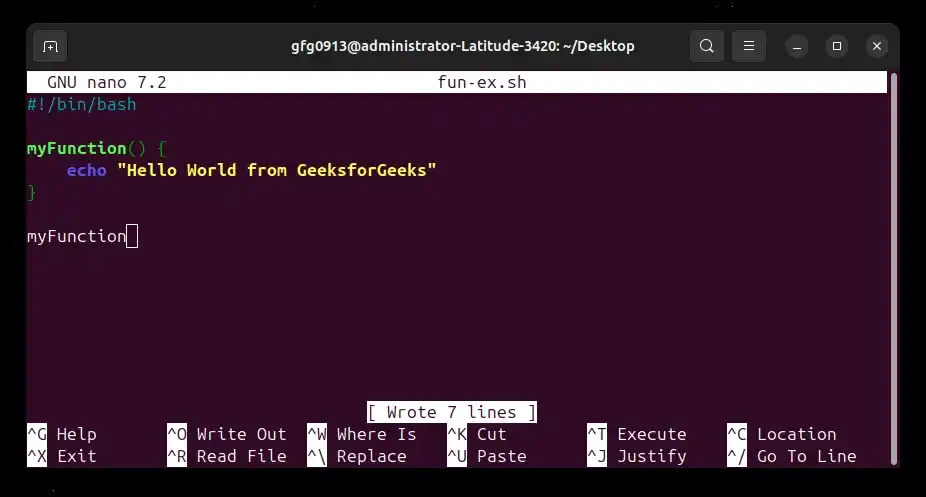
**Output:
- The function runs only when it is called.
Function Syntax
function_name() {
commands
}
function_name
- **function_name(): Function definition
- ****{}:** Block of commands
- **function_name: Executes the function
String and Numeric Comparisons in Bash
Comparisons allow Bash scripts to evaluate conditions and make decisions. Bash supports both string comparisons and numeric comparisons, which are commonly used in conditional statements. Understanding comparison operators is essential for validating input, checking values and controlling script flow.
- Enable conditional decision making
- Validate user input and data
- Compare values inside scripts
- Control execution flow
- Improve script reliability
String Comparison Operators
String comparisons are used to compare text values.
- **==: True if both strings are equal
- ****!=:** True if strings are not equal
- **-n: True if the string is not empty
- **-z: True if the string is empty
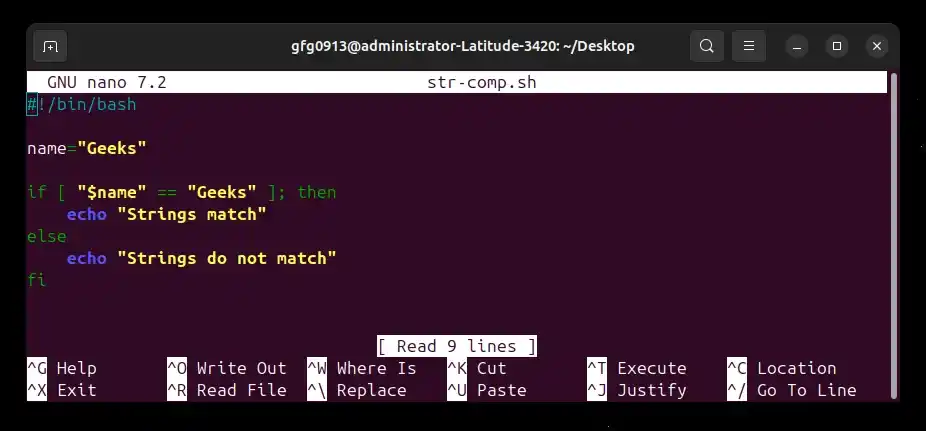
**Example: String Comparison
#!/bin/bash
name="Geeks"
if [ "$name" == "Geeks" ]; then
echo "Strings match"
else
echo "Strings do not match"
fi
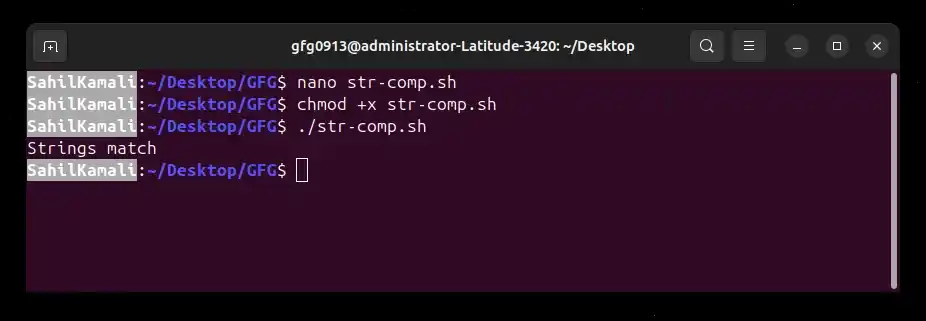
**Output:
**Note: Quotes around variables prevent errors when strings contain spaces.
Numeric Comparison Operators
Numeric comparisons evaluate integer values.
- **-eq: Equal to
- **-ne: Not equal to
- **-gt: Greater than
- **-ge: Greater than or equal
- **-lt: Less than
- **-le: Less than or equal
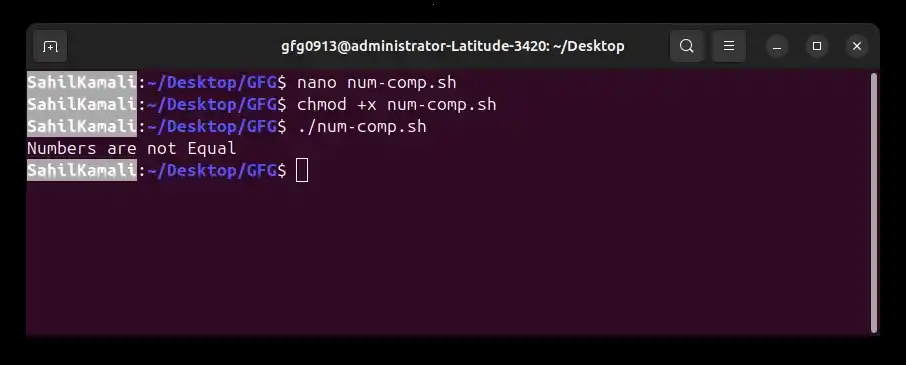
**Example: Numeric Comparison
#!/bin/bash
num=15
if [ "$num" -eq 10 ]; then
echo "Numbers are equal"
else
echo "Numbers are not Equal"
fi
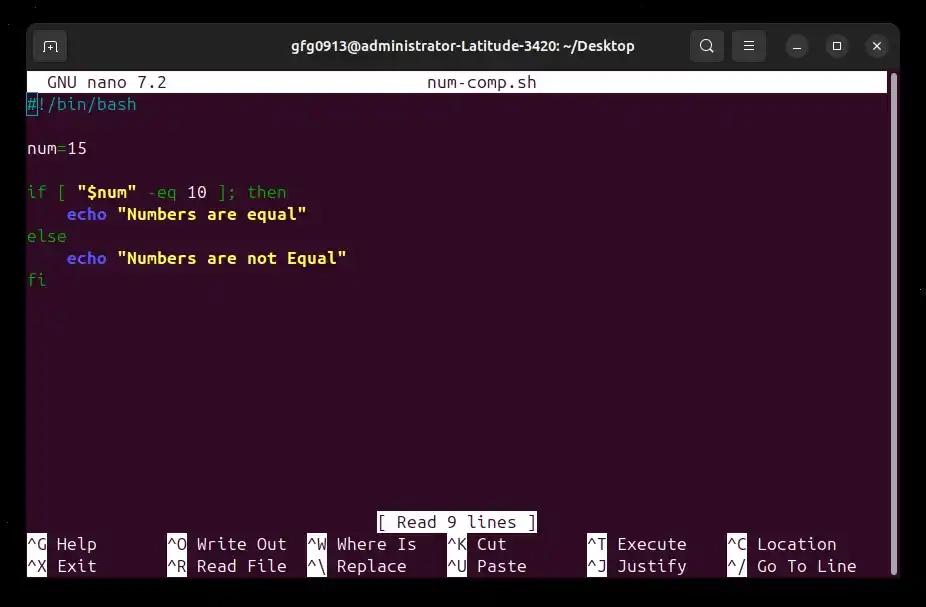
**Expected Output:
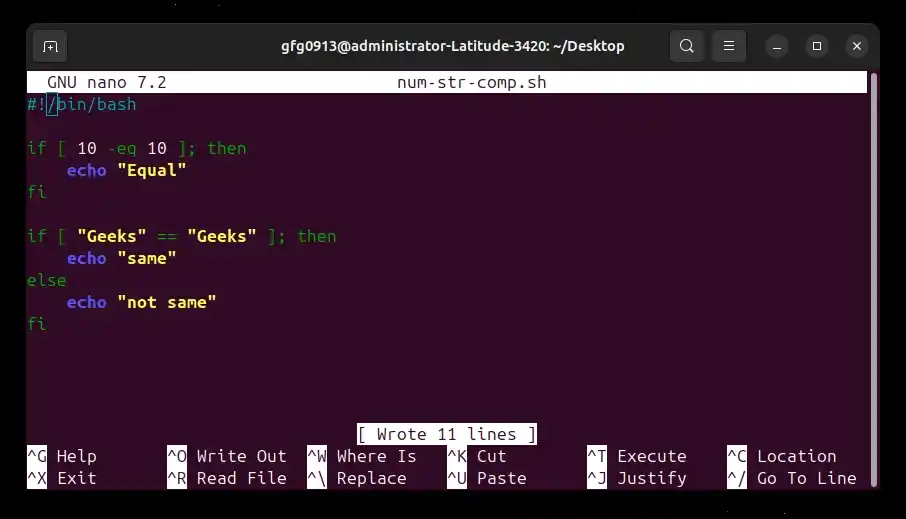
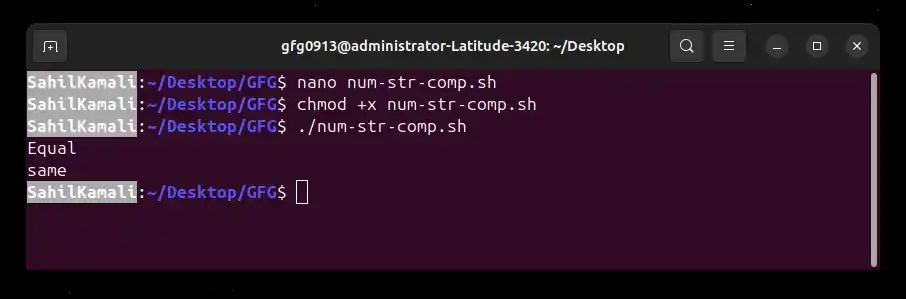
**Combined Example:
#!/bin/bash
if [ 10 -eq 10 ]; then
echo "Equal"
fi
if [ "Geeks" == "Geeks" ]; then
echo "same"
else
echo "not same"
fi
**Expected Output:
File Names and Permissions in Bash
When creating a Bash script, proper file naming and execution permissions are essential. Without execute permission, the script cannot run directly from the terminal. Understanding file naming conventions and permissions ensures scripts work correctly and securely.
- Enables script execution using ./script.sh
- Prevents permission-related errors
- Follows standard Linux naming conventions
- Improves readability and organization
- Maintains system security
Script File Naming Convention
A Bash script can technically have any filename. However, by convention, scripts use the .sh extension to indicate that the file contains shell commands. Using standard naming conventions makes scripts easier to identify, maintain and manage especially in large projects or shared environments.
**Recommended Naming Styles
- **my_script.sh: Snake case (recommended for readability)
- **my-script.sh: Hyphen-separated
- Avoid spaces in file names (can cause execution issues)
**Note: Using .sh does not make the script executable automatically, it only helps identify the file type.
Execute Permission
In Linux, files must have execute permission to run as programs. When you create a new script file, it is treated as a regular text file and does not have execution rights by default.
If you try to execute it directly:
**Command:
./myscript.sh
You may see:
**Output:
Permission denied
- This error occurs because the system blocks execution due to missing execute permission.
**Note: Linux enforces this behavior for security reasons not every file should be allowed to run as a program.
Giving Execute Permission
To allow the script to run, you must manually grant execute permission using the chmod command.
**Command:
chmod +x myscript.sh
- **chmod: Changes file permissions
- ****+x:** Adds execute permission
- **myscript.sh: The script file
After adding permission, you can execute the script:
**Command:
./myscript.sh