Building Desktop Applications in Python (original) (raw)
Desktop applications are crucial for various industries, from business management tools to personal productivity software. Python, known for its simplicity and versatility, is a great choice for building desktop applications. It offers several powerful GUI frameworks that make development easier and faster. In this article, we’ll explore the process of creating desktop applications using Python, from setting up the environment to distributing your final application.
What are Desktop Applications?
Desktop applications are software programs that run directly on a computer’s operating system without requiring a web browser. Unlike web applications, they don’t rely on an internet connection to function, making them ideal for tasks like document editing, media playback, and data processing. Examples include Microsoft Word, VLC Media Player, and Adobe Photoshop.
These applications provide better performance and access to system resources, such as files, printers, and hardware, making them suitable for both personal and professional use.
Why Choose Python for Desktop Development?
Python is a popular choice for building desktop applications due to several reasons:
- **Ease of Use – Python’s simple and readable syntax makes it beginner-friendly.
- **Cross-Platform Compatibility – Python applications can run on Windows, macOS, and Linux with minimal modifications.
- **Rich GUI Frameworks – Python offers multiple libraries for building graphical user interfaces (GUIs), making development flexible.
- **Strong Community Support – Python has an active developer community that provides support, tutorials, and third-party tools.
- **Integration Capabilities – Python can easily integrate with databases, APIs, and other programming languages, making it suitable for complex applications.
Overview of Popular GUI Frameworks in Python
Python provides several GUI frameworks, each with its own strengths:
- **Tkinter – Comes built-in with Python and is great for simple applications.
- **PyQt / PySide – Feature-rich frameworks for creating professional applications.
- **Kivy – Best for building cross-platform apps, including mobile applications.
- **wxPython – Provides a native look and feel, closely resembling traditional desktop applications.
Each of these frameworks has its own use case, and choosing the right one depends on your project requirements.
Setting Up the Environment
Before we start building desktop applications with Python, we need to set up our development environment.
1. Installing Python and Required Libraries
First, install Python from the official website: python.org. Ensure you check the option to add Python to the system PATH during installation.
To install python step-by-step follow our guide: **Download and Install Python 3 Latest Version****.**
2. Overview of Package Managers (pip, conda)
Python uses package managers to install and manage external libraries:
- **pip – The default package manager, used to install GUI frameworks and other dependencies. Example:
pip install PyQt5
- **conda – Used in the Anaconda distribution, suitable for managing packages in a controlled environment.
3. Setting Up a Virtual Environment
It’s best practice to use a virtual environment to keep project dependencies isolated.
To create a virtual environment, follow our detailed guide: **Create virtual environment in Python.
Once the environment is ready, you can install the required GUI framework and start building your desktop application.
Choosing the Right Python GUI Library for Your Project
Selecting the right GUI framework depends on your project’s needs. Here’s a quick guide to help you decide:
- **Tkinter – Best for beginners and simple applications. It’s lightweight and built into Python.
- **PyQt / PySide – Ideal for complex and professional applications requiring advanced UI elements.
- **Kivy – Perfect for cross-platform applications, including mobile apps.
- **wxPython – Good for apps that need a native look and feel on Windows, macOS, and Linux.
If you’re new to GUI development, Tkinter is a great starting point. If you need a more advanced UI, PyQt or wxPython might be better.
Creating Your First Python Desktop Application
Step-by-Step Guide to Building a Simple Application
Let's build a basic To-Do List application using Tkinter. This app will allow users to add tasks and mark them as completed.
1. Import Required Libraries
Python `
import tkinter as tk from tkinter import messagebox
`
- **tkinter is imported to create the graphical user interface (GUI).
- **messagebox is used to display warning messages when needed.
2. Create the Main Application Window
Python `
root = tk.Tk() # Create the main window root.title("To-Do List") # Set window title root.geometry("300x400") # Set window size
`
- **tk.Tk() initializes the main window of the application.
- ****.title()** sets the window’s title to "To-Do List".
- ****.geometry()** defines the size of the application window (300x400 pixels).
3. Add Widgets and Handle Events
**Storing Tasks in a List
Python `
tasks = [] # List to store tasks
`
- A list named tasks is created to store the user’s to-do list items.
**Function to Add a Task
Python `
def add_task(): """Adds a task to the list.""" task = task_entry.get() # Get task from the entry field if task: tasks.append(task) # Add task to the list task_listbox.insert(tk.END, task) # Display task in the listbox task_entry.delete(0, tk.END) # Clear input field else: messagebox.showwarning("Warning", "Task cannot be empty!") # Show warning if input is empty
`
- Retrieves the entered task from **task_entry.
- If the input is not empty, the task is added to the tasks list and displayed in **task_listbox.
- The input field is cleared after adding the task.
- If no task is entered, a warning message is displayed using **messagebox.showwarning().
**Function to Remove a Task
Python `
def remove_task(): """Removes selected task from the list.""" try: selected_task_index = task_listbox.curselection()[0] # Get index of selected task task_listbox.delete(selected_task_index) # Remove task from listbox del tasks[selected_task_index] # Remove task from the list except IndexError: messagebox.showwarning("Warning", "No task selected!") # Show warning if no task is selected
`
- Uses .curselection() to get the index of the selected task.
- Deletes the task from both task_listbox (GUI) and tasks (data list).
- If no task is selected, it shows a warning message.
**Creating Input Field, Buttons and Task List
Python `
Input field for entering tasks
task_entry = tk.Entry(root, width=30) task_entry.pack(pady=10)
Buttons to add and remove tasks
add_button = tk.Button(root, text="Add Task", command=add_task) add_button.pack()
remove_button = tk.Button(root, text="Remove Task", command=remove_task) remove_button.pack()
Listbox to display tasks
task_listbox = tk.Listbox(root, width=40, height=15) task_listbox.pack(pady=10)
`
- **tk.Entry() creates an input field where users can type tasks, with a width of 30 characters.
- **tk.Button() creates buttons labeled "Add Task" and "Remove Task", which trigger the add_task and remove_task functions respectively when clicked.
- **tk.Listbox() creates a task list display with a width of 40 and height of 15, ensuring enough space for tasks.
- ****.pack(pady=10)** is used throughout to add spacing between widgets for a cleaner layout.
4. Run the Application
Python `
root.mainloop() # Start the application
`
- ****.mainloop()** keeps the application running, listening for user interactions.
**Combined Code:
Python `
import tkinter as tk from tkinter import messagebox
Create the main application window
root = tk.Tk()
root.title("To-Do List") # Set window title
root.geometry("300x400") # Set window size
List to store tasks
tasks = []
def add_task(): """Adds a task to the list.""" task = task_entry.get() # Get task from the entry field if task: tasks.append(task) # Add task to the list task_listbox.insert(tk.END, task) # Display task in the listbox task_entry.delete(0, tk.END) # Clear input field else: messagebox.showwarning("Warning", "Task cannot be empty!") # Show warning if input is empty
def remove_task(): """Removes selected task from the list.""" try: selected_task_index = task_listbox.curselection()[0] # Get index of selected task task_listbox.delete(selected_task_index) # Remove task from listbox del tasks[selected_task_index] # Remove task from the list except IndexError: messagebox.showwarning("Warning", "No task selected!") # Show warning if no task is selected
Creating input field, buttons, and task list
task_entry = tk.Entry(root, width=30) # Input field for entering tasks task_entry.pack(pady=10) # Add spacing around the input field
add_button = tk.Button(root, text="Add Task", command=add_task) # Button to add tasks add_button.pack() # Display the button
remove_button = tk.Button(root, text="Remove Task", command=remove_task) # Button to remove tasks remove_button.pack() # Display the button
task_listbox = tk.Listbox(root, width=40, height=15) # Listbox to display tasks task_listbox.pack(pady=10) # Add spacing around the listbox
Run the application
root.mainloop()
`
**Output:
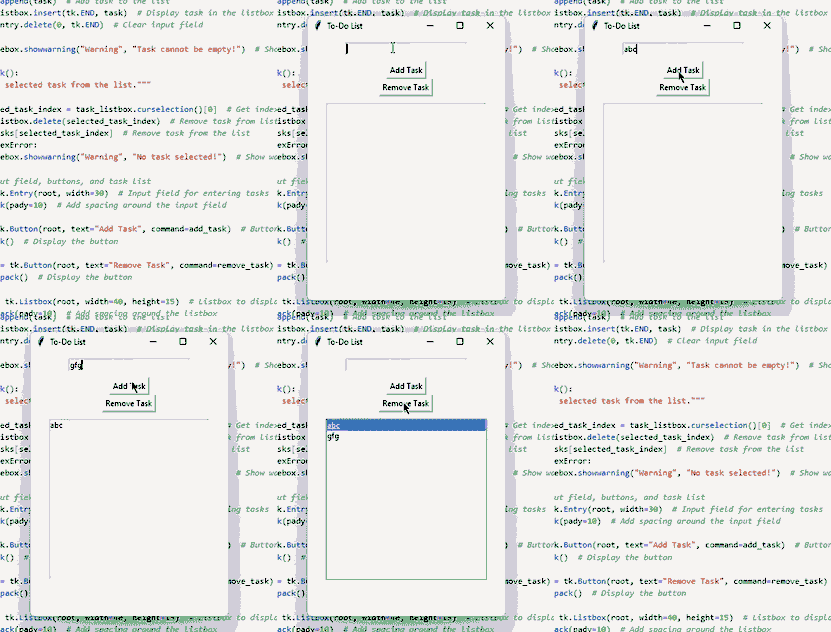
To Do List
Best Practices for Python Desktop Development
Building a desktop application requires clean code, performance optimization, and a great user experience. Here are key practices to follow:
**1. Maintain a Clean Code Structure: Use **modular programming to keep GUI, database, and logic separate. Follow **PEP 8 for readability and use meaningful function/class names.
**2. Use Virtual Environment: Manage dependencies with **venv or **conda to prevent conflicts.
**3. Optimize Performance: Avoid UI freezing by using **multithreading for heavy tasks. Load large files or data **asynchronously for a smooth experience.
**4. Handle Errors Gracefully: Use **try-except blocks for errors and implement **logging for tracking issues.
**5. Ensure a Responsive UI: Run background tasks separately to keep the UI active. Use **progress bars and **loading indicators for better user feedback.
**6. Use a Database for Persistent Data: Store data in **SQLite or **SQLAlchemy ORM instead of text files. Keep database operations separate from UI logic.
**7. Package and Distribute Your App: Convert scripts into executables using **PyInstaller or **cx_Freeze. Ensure compatibility across **Windows, macOS, and Linux.
**8. Test and Debug Efficiently: Use **unit tests to validate components and **breakpoints for debugging. Collect user feedback and improve the application continuously.