Data visualization With Pygal (original) (raw)
Last Updated : 23 Jul, 2025
**Pygal is an open-source Python library designed for creating interactive **SVG (Scalar Vector Graphics)charts. It is known for its simplicity and ability to produce high-quality visualizations with minimal code. Pygal is particularly useful for web applications, as it integrates well with frameworks like Flask and Django, and its SVG output ensures scalability without loss of quality.

Data visualization With Pygal
Installing Pygal for Data Visualization
To get started, you need to install Pygal. You can do this using pip:
pip install pygal
Creating Basic Charts with Pygal
Pygal supports a variety of chart types. Here’s an overview of some popular ones: Let's explore how to create some basic charts using Pygal. Pygal primarily generates charts in SVG (Scalable Vector Graphics) format, which is a vector image format.
1. Bar Charts
**Bar chartsare used to compare quantities across different categories. It is one of the most common chart types and is helpful in visualizing the differences between discrete categories. Pygal's Bar chart allows you to plot data for different categories and add multiple series.
**Syntax:
pygal.Bar(title=None, x_labels=None, style=None, width=None, height=None, legend_at_bottom=None)
- **title: (str) The title of the chart.
- **x_labels: (list) Labels for the x-axis, usually categories.
- **style: (object) Optional styling for the chart (e.g., color themes).
- **width: (int) Width of the chart in pixels.
- **height: (int) Height of the chart in pixels.
- **legend_at_bottom: (bool) Whether to place the legend at the bottom.
Python `
import pygal
bar_chart = pygal.Bar() bar_chart.add('Category A', [1, 3, 5, 7]) bar_chart.add('Category B', [2, 4, 6, 8]) bar_chart.render_to_file('bar_chart.svg')
`
Output:
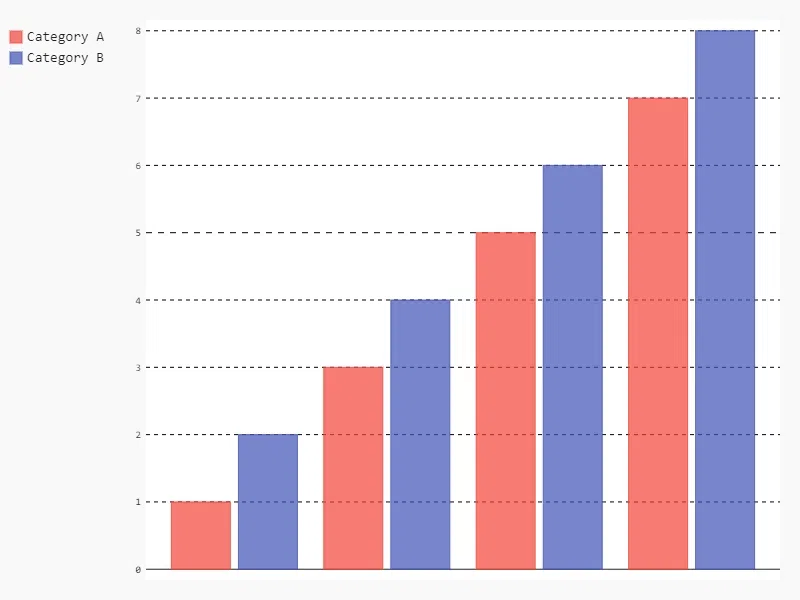
Bar Chart
2. Line Charts
**Line charts are used to display information as a series of data points connected by straight lines. They are particularly useful for showing trends over time.
**Syntax:
pygal.Line(title=None, x_labels=None, style=None, width=None, height=None, legend_at_bottom=None)
- **title: (str) The title of the chart.
- **x_labels: (list) Labels for the x-axis, often representing time intervals.
- **style: (object) Optional chart styling.
- **width: (int) Width of the chart.
- **height: (int) Height of the chart.
- **legend_at_bottom: (bool) Whether to display the legend at the bottom.
Python `
import pygal
line_chart = pygal.Line() line_chart.add('Series 1', [1, 3, 5, 7]) line_chart.add('Series 2', [2, 4, 6, 8]) line_chart.render_to_file('line_chart.svg')
`
**Output:
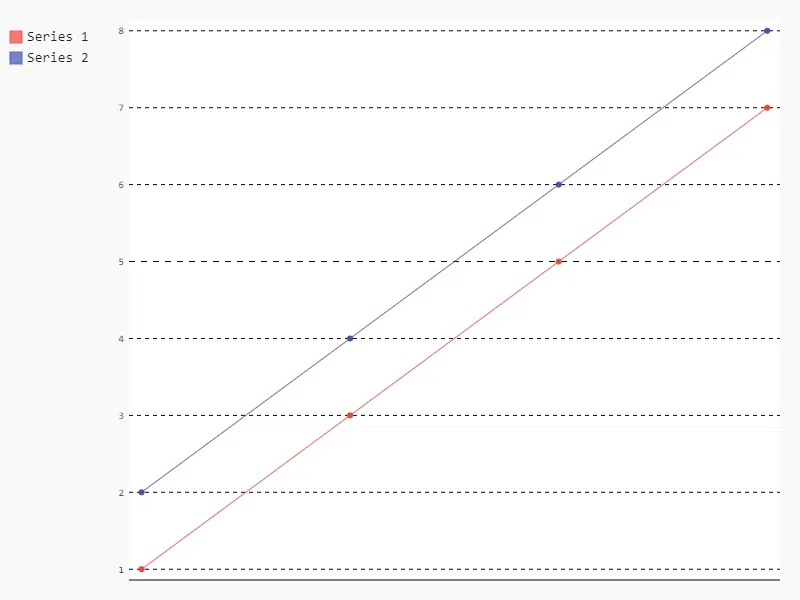
Line Chart
3. Pie Charts
**Pie chartsshow data in a circle, with each slice representing a part of the whole. The size of each slice shows how much each category contributes. They're useful for displaying how different parts make up a total.
**Syntax:
pygal.Pie(title=None, inner_radius=None, style=None, width=None, height=None)
- **title: (str) The title of the chart.
- **inner_radius: (float) Radius for the inner part of the pie (used in donut charts).
- **style: (object) Optional styling.
- **width: (int) Chart width.
- **height: (int) Chart height.
Python `
import pygal
pie_chart = pygal.Pie() pie_chart.add('Part A', 10) pie_chart.add('Part B', 20) pie_chart.add('Part C', 30) pie_chart.render_to_file('pie_chart.svg')
`
**Output:
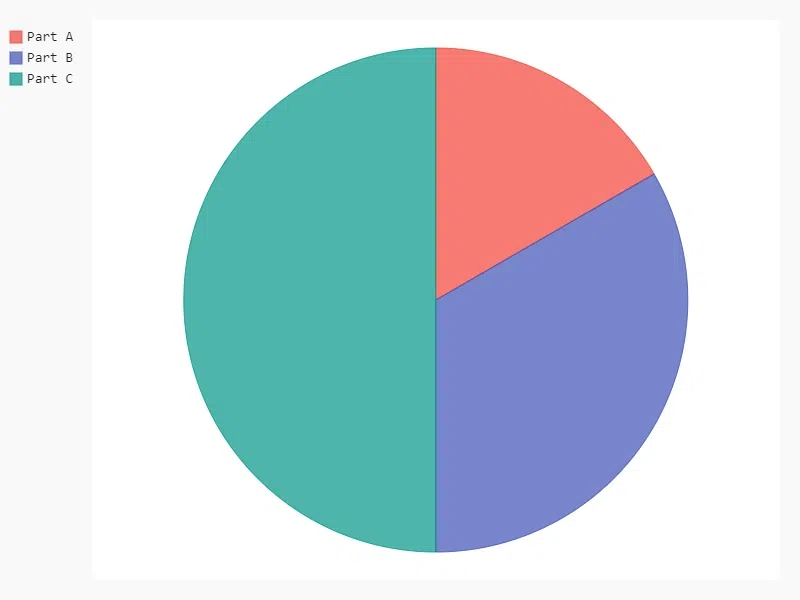
Pie Chart
4. Donut Chart
A**donut chart is a variation of the pie chart with a hole in the center. It’s useful when comparing proportions with some central data or reference point.
**Syntax:
pygal.Pie(title=None, inner_radius=0.4, style=None, width=None, height=None)
- **title: (str) The title of the chart.
- **inner_radius: (float) Radius of the center hole (0.4 for a typical donut chart).
- **style: (object) Optional style.
- **width: (int) Chart width.
- **height: (int) Chart height.
Python `
import pygal
pie_chart = pygal.Pie(inner_radius=0.4) pie_chart.add('Part A', 10) pie_chart.add('Part B', 20) pie_chart.add('Part C', 30)
pie_chart.render_to_file('donut_chart.svg')
`
**Output:
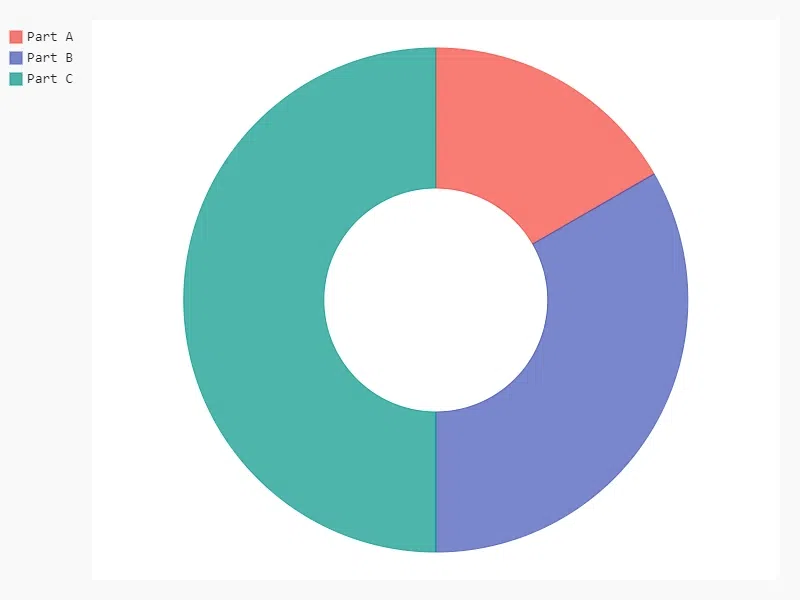
Donut Chart
5. Radar Charts
**Radar charts display multivariate data on axes starting from the same point. They are good for comparing multiple variables.
**Syntax:
pygal.Radar(title=None, x_labels=None, style=None, width=None, height=None)
- **title: (str) The title of the chart.
- **x_labels: (list) Labels for the radar axes, representing different variables.
- **style: (object) Chart styling.
- **width: (int) Chart width.
- **height: (int) Chart height.
Python `
import pygal
radar_chart = pygal.Radar() radar_chart.add('Series 1', [1, 2, 3, 4]) radar_chart.add('Series 2', [4, 3, 2, 1]) radar_chart.render_to_file('radar_chart.svg')
`
**Output:
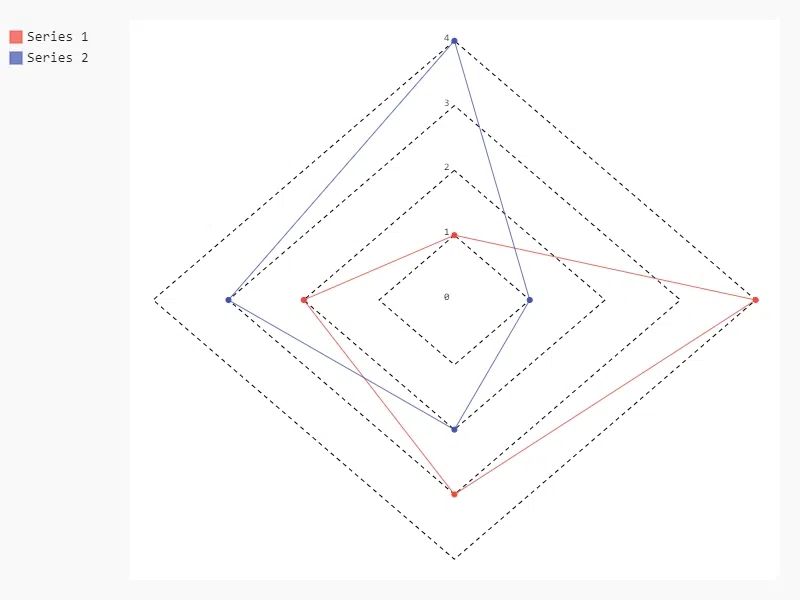
Radar chart
6. Histogram
Histograms show the distribution of numerical data by grouping data into bins and showing the frequency of data points within each bin.
**Syntax:
pygal.Histogram(title=None, bins=None, style=None, width=None, height=None)
- **title: (str) The title of the chart.
- **bins: (list of tuples) Each tuple represents a bin with the format
(frequency, lower_bound, upper_bound).- **style: (object) Chart style.
- **width: (int) Chart width.
- **height: (int) Chart height.
Python `
import pygal
histogram = pygal.Histogram() histogram.add('Data', [(0, 1), (5, 2), (10, 3)]) histogram.render_to_file('histogram.svg')
`
**Output:
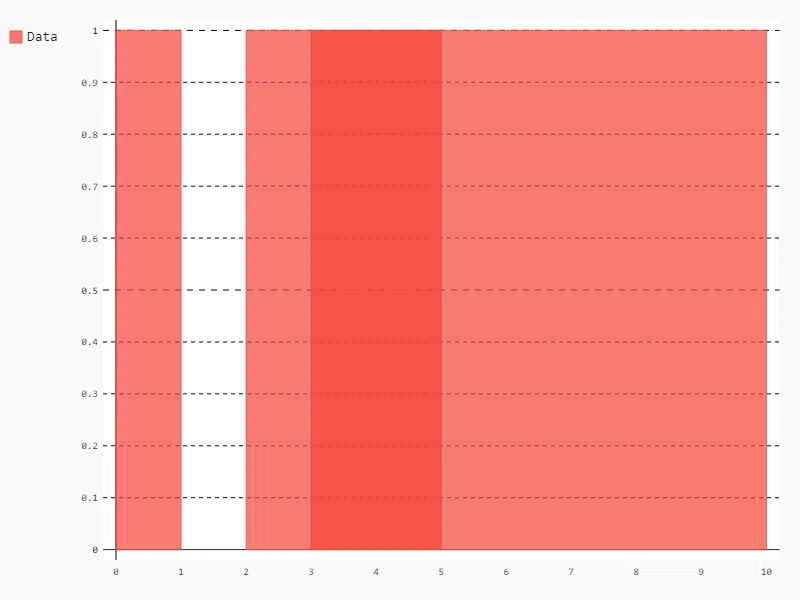
Histogram
7. Box Plot
**Box plotsare used to display the distribution of data based on five summary statistics: minimum, first quartile, median, third quartile, and maximum.
**Syntax:
pygal.Box(title=None, x_labels=None, style=None, width=None, height=None)
- **title: (str) The title of the chart.
- **x_labels: (list) Labels for the data categories.
- **style: (object) Chart style.
- **width: (int) Chart width.
- **height: (int) Chart height.
Python `
import pygal
box_plot = pygal.Box() box_plot.add('Data', [1, 2, 3, 4, 5, 6, 7, 8, 9, 10]) box_plot.render_to_file('box_plot.svg')
`
**Output:
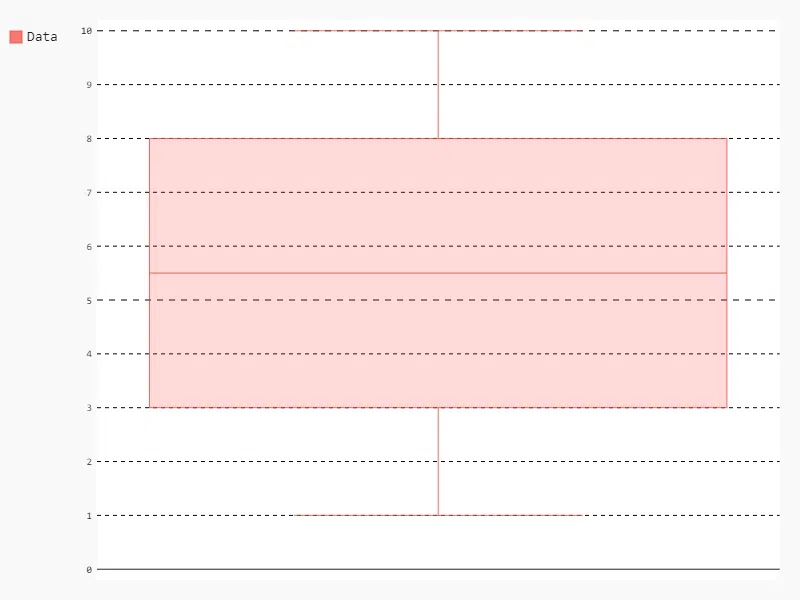
Box Plot
8. XY Plot
XY plots (scatter plots) are used to plot two-dimensional data, showing the relationship between two variables. They help visualize patterns, trends, and correlations in the data, making it easier to understand how the variables interact.
**Syntax:
pygal.XY(title=None, x_title=None, y_title=None, dots_size=None, style=None, width=None, height=None)
- **title: (str) The title of the chart.
- **x_title: (str) The label for the x-axis.
- **y_title: (str) The label for the y-axis.
- **dots_size: (int) Size of the dots representing data points.
- **style: (object) Chart style.
- **width: (int) Chart width.
- **height: (int) Chart height.
Python `
import pygal
xy_plot = pygal.XY(stroke=True) xy_plot.add('Data', [(1, 2), (3, 4), (5, 6)]) xy_plot.render_to_file('xy_plot.svg')
`
**Output:
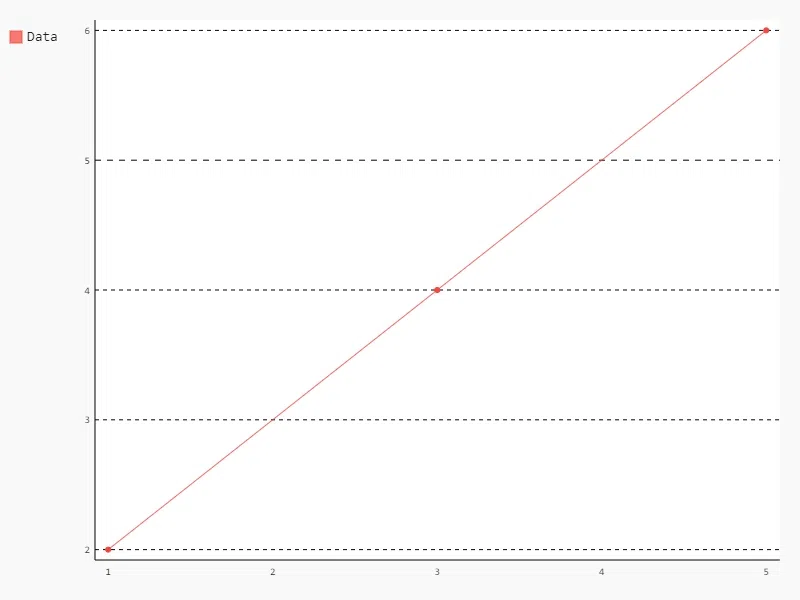
XY Plot
Chart Customizations in Pygal
Pygal offers extensive customization options for charts. Customization is one of Pygal's standout features, allowing you to create personalized and visually appealing charts with minimal effort. From adjusting titles and labels to modifying colors, legends, and tooltips, Pygal provides extensive options to enhance your data visualizations. Here’s an in-depth look at the most important customization aspects:
1. Title and Labels
You can easily set titles and axis labels to make your chart more informative. Titles help provide context for the data being visualized, while labels guide the viewer in interpreting the data points.
- **Title: Sets the title of the chart, displayed at the top.
- **X and Y Labels: Define the labels for the x-axis and y-axis, typically representing categories and numerical values, respectively. Python `
import pygal
bar_chart = pygal.Bar(title='Bar Chart Title', x_label_rotation=30) bar_chart.add('Category A', [1, 3, 5, 7]) bar_chart.add('Category B', [2, 4, 6, 8]) bar_chart.render_to_file('bar_chart.svg')
`
**Output:

Chart Customizations in Pygal
2. Colors and Styles
Pygal allows you to customize the color palette and overall style of your charts, ensuring they align with your branding or aesthetic preferences.
- **Colors: You can assign specific colors to each data series, making charts more readable and visually distinct.
- **Styles: Predefined styles like
LightStyleandDarkStyleare available, offering quick theming options, while you can also create custom styles by defining attributes such as background color, font size, and stroke width. Python `
import pygal from pygal.style import Style
custom_style = Style( colors=['#E80080', '#404040'], background='#FFFFFF', plot_background='#EFEFEF', opacity='.6', label_font_size=14, )
bar_chart = pygal.Bar(style=custom_style) bar_chart.add('Category A', [1, 3, 5, 7]) bar_chart.add('Category B', [2, 4, 6, 8]) bar_chart.render_to_file('bar_chart.svg')
`
**Output:
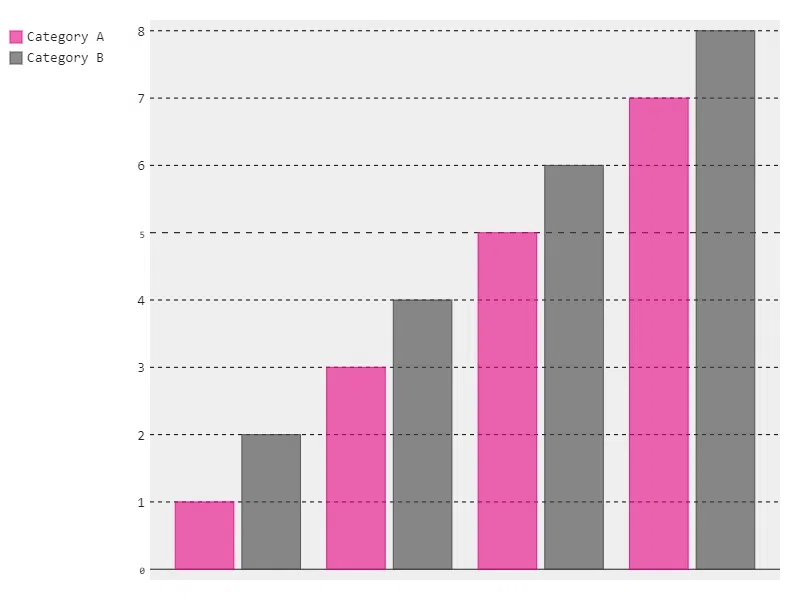
Chart Customizations in Pygal
3. Legends and Labels
Legends and labels provide additional information about the chart, such as explaining different series and categorizing data.
- **Legends: The legend displays information about what each data series represents. You can position the legend at different locations, such as the bottom of the chart, for better layout control.
- **Labels: Labels for individual data points can be displayed within the chart, showing exact values or categories for each bar, slice, or point. Python `
import pygal
line_chart = pygal.Line(legend_at_bottom=True) line_chart.add('Series 1', [1, 3, 5, 7]) line_chart.add('Series 2', [2, 4, 6, 8]) line_chart.render_to_file('line_chart.svg')
`
**Output:
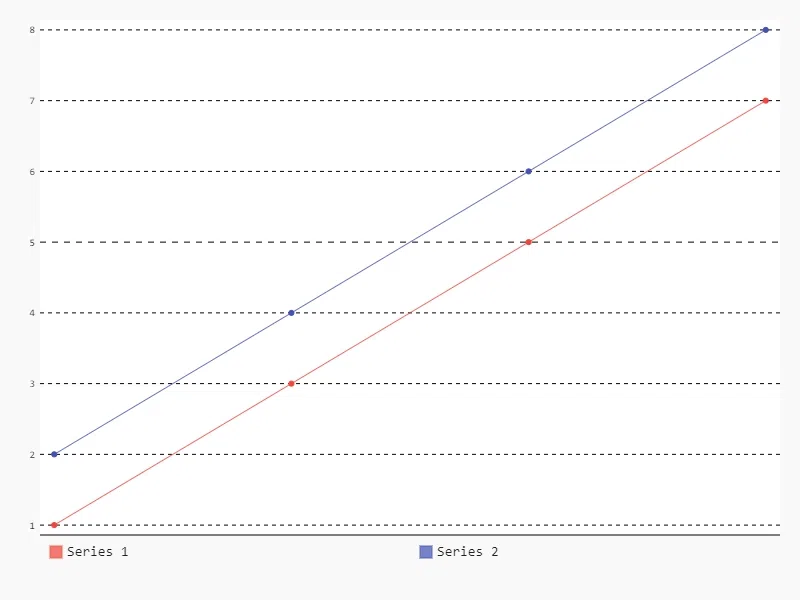
Chart Customizations in Pygal
4. Tooltips
Tooltips enhance interactivity by showing detailed information when the user hovers over a specific data point in the chart. This is especially useful for web-based visualizations where you want to provide more insight without cluttering the chart.
- **Tooltips: Display additional data, such as exact values, categories, or even custom messages when hovering over chart elements.
- **Interactive Charts: Enable dynamic updates of tooltips in SVG files embedded in web pages, adding a layer of interactivity to your visualizations. Python `
import pygal
pie_chart = pygal.Pie(tooltip_border_radius=10) pie_chart.add('Part A', 10) pie_chart.add('Part B', 20) pie_chart.add('Part C', 30) pie_chart.render_to_file('pie_chart.svg')
`
**Output:
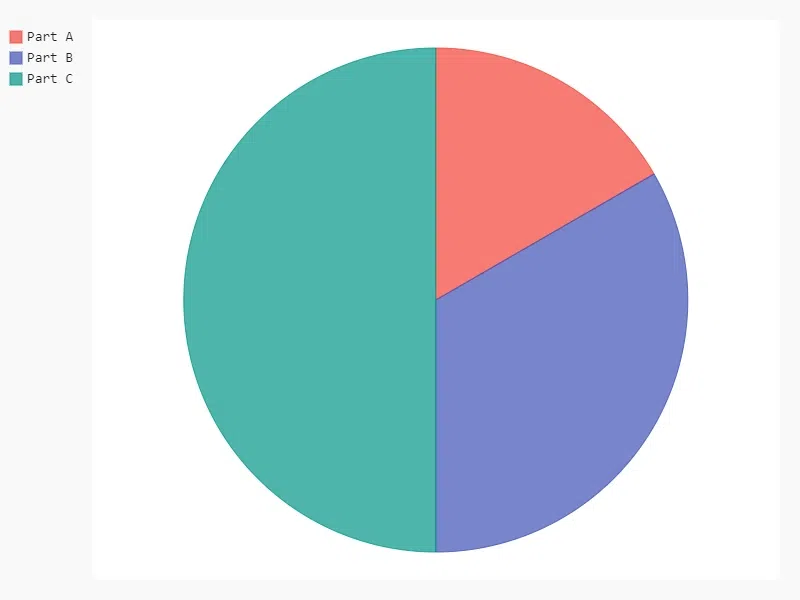
Chart Customizations in Pygal
**For more customizations, refer to:
Adding Multiple Series in Pygal
Adding multiple series to a chart in Pygal allows you to compare different datasets within the same visualization. This is particularly useful for spotting trends, patterns, and relationships between groups of data. Whether you’re comparing sales over different years, tracking multiple product categories, or analyzing performance metrics across departments, multiple series enhance the depth of your data representation.
Python `
import pygal
bar_chart = pygal.Bar() bar_chart.add('Series 1', [1, 2, 3]) bar_chart.add('Series 2', [3, 2, 1]) bar_chart.render_to_file('bar_chart.svg')
`
**Output:
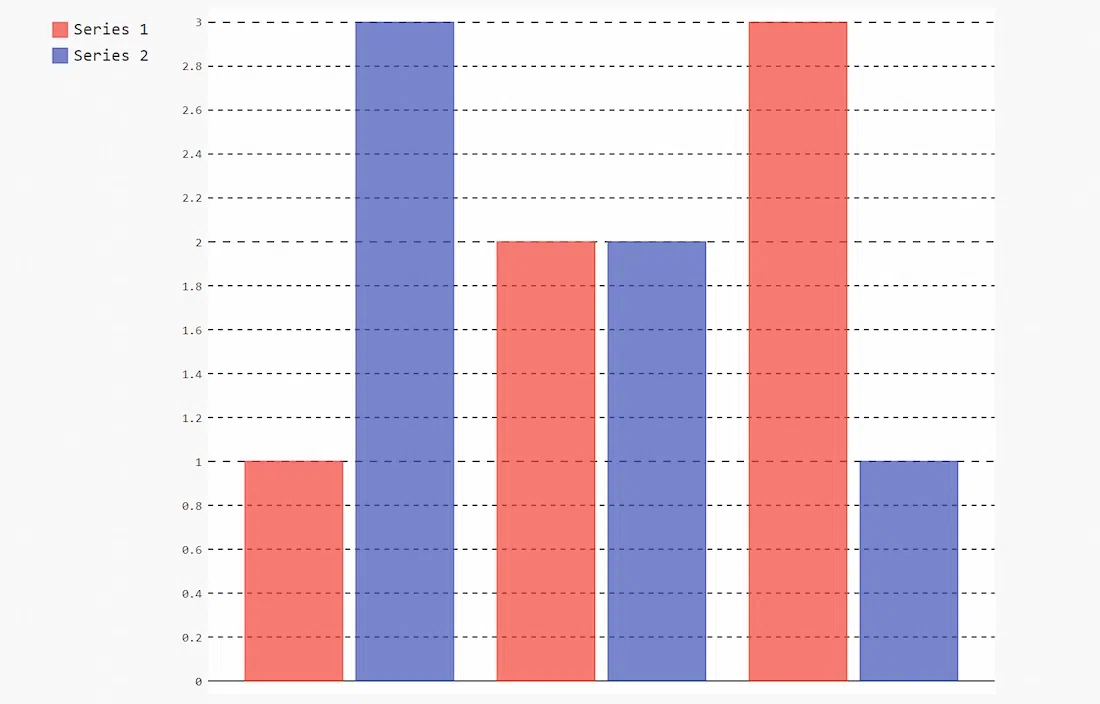
Adding Multiple Series in Pygal
Creating Dynamic Charts with Pygal
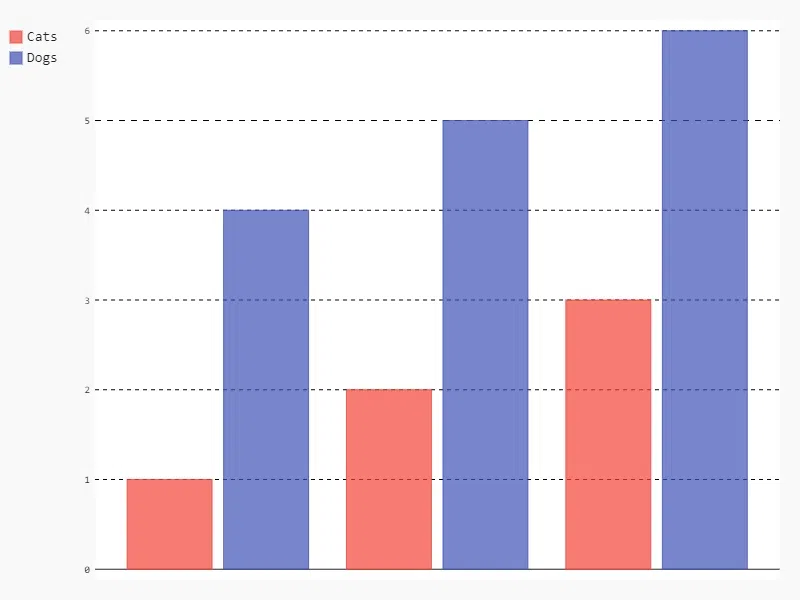
One of Pygal’s most powerful features is its ability to generate dynamic charts by integrating it with Python’s data structures. This means you can create charts that update automatically based on real-time or changing datasets, making Pygal an excellent choice for dashboards, reports, and web applications where data is continuously updated.
**How Dynamic Charts Work:
- **Python Data Structures: Pygal works with Python lists, dictionaries, and other iterable structures, allowing you to feed dynamic data directly into your charts. This enables real-time updates as your data changes, whether it's from a live data feed or periodic calculations.
- **Flexibility: You can modify the data, adjust the chart parameters, and immediately render a new chart without manual intervention, providing a highly flexible and efficient workflow.
**Example:
For instance, if you're tracking live sales data:
- **Data Structure: A Python list or dictionary continuously updated with sales figures (
[500, 600, 700]). - **Dynamic Chart: Pygal will update the Bar chart automatically each time the data is modified, ensuring that your visualizations are always up-to-date. Python `
import pygal
data = {'Cats': [1, 2, 3], 'Dogs': [4, 5, 6]} bar_chart = pygal.Bar() for key, values in data.items(): bar_chart.add(key, values) bar_chart.render_to_file('bar_chart.svg')
`
**Output:
Dynamic Charts with Pygal
**Use Case:
In a real-time dashboard, you might use a list of temperatures updated every minute. As the list is updated, Pygal dynamically reflects these changes in the Line chart, allowing for continuous monitoring of temperature trends.
Exporting and Embedding Charts in Pygal
One of Pygal’s strengths is that it can export charts as SVG files, which stay clear and sharp at any size. Pygal charts can be easily added to websites, making it simple to share interactive data online.
**File Export Options:
- You can export your charts to different formats, including SVG and PNG, depending on your needs. SVG is ideal for web use, while PNG might be more suited for static presentations and reports.
**Embedding Charts in Web Pages:
- **HTML Integration: Embedding Pygal charts into HTML is simple. By rendering the chart as SVG, you can directly insert the SVG code into your web pages, or reference the saved SVG file using an HTML
<img>tag. - **Interactive Features: When embedded in a web page, Pygal charts retain their interactive features such as tooltips and hover effects.
To use Pygal charts in HTML, we use the **render method to get the SVG data:
Python `
import pygal
bar_chart = pygal.Bar() bar_chart.add('Cats', [1, 2, 3]) svg_data = bar_chart.render()
with open('chart.html', 'w') as file: file.write(f'{svg_data}')
`
In Conclusion Pygal is a powerful tool for creating SVG charts in Python. With its variety of chart types, extensive customization options, and advanced features, it offers flexibility for visualizing data in various ways.