How to Install Docker on Windows? (original) (raw)
Last Updated : 23 Jul, 2025
Before understanding the concept of Docker, let's first discuss the concept of Hypervisors. So in an IT Company, or any cooperation, there is a development team, a testing team, and an operation team for developing the application, testing it, and deploying it. Now suppose the developers are working on a different OS, for example, let's say macOS, and they used some dependencies or libraries as per the language they are using, so they just won't hand the software to the testing team, but also the libraries, But now, the application didn't run the tester's machine, but it worked on the developer's machine, maybe because the tester's machine has different OS features than the developer's one.
In this article, we will guide you through on firstly discussing what is docker, what are the requirements to docker for installing in Windows, why to install docker on windows, its implementation guide, best practices and troubleshooting issues and much more, The following is the table of content, helping you to give a overview what we going to cover in this article.
Table of Content
- What is Docker?
- Requirements of Windows For Downloading Docker
- Specifications for Docker Desktop Installation
- Why to Install Docker on Windows?
- How to Install Docker Desktop on Windows? A Step-By-Step Guide
- How to Start Docker Desktop?
- How to Install Docker Desktop from the Command Line?
- How to Install Docker on Windows 10?
- How to Install Docker on Windows 11?
- How to Update the Docker in Windows?
- Advantages of Docker In Windows
- How to Uninstall the Docker Desktop Tool? A Step-By-Step Guide
- How to Install and Enable WSL 2 on Windows
- How to Install Docker With WSL 2 Backend on Windows?
- How to Install Docker on Windows Without Docker Desktop? A Step-By-Step Guide
- What's the difference between Docker for Windows and Docker on Windows?
- Best practices of using Docker on Windows
- Common Troubleshooting Issues Related to Docker on Windows
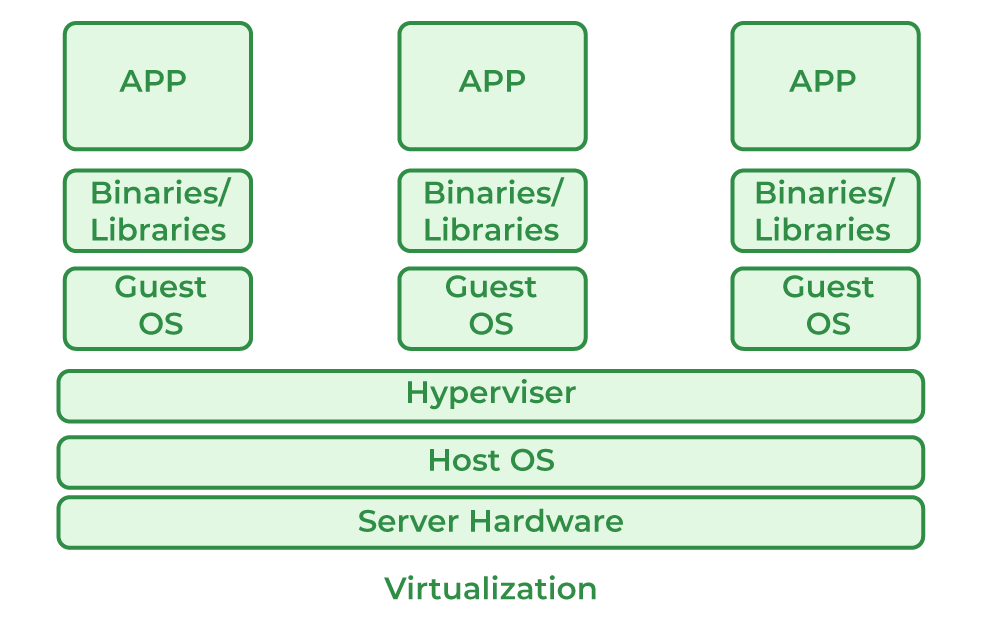
But the problem here is, for every application, one needs a different OS, this will result in a waste of resources as multiple OSs will be running. So for this problem, we have the concept of Containers, the difference between Hypervisors and containers is that we don't need multiple OS for every application, multiple applications can share the same OS kernel, can't they? So instead of installing HYPERVISOR, we will be installing Docker.

What is Docker?
Docker is an open-source container platform software tool, where you run your applications in the form of containers. Docker containers comes with light weighted softwares having all the dependencies and configurations so we can run them across different computing environments. It facilitates the developers to package their application with all its dependencies into a single entity in the form of images. These can be portable easily or sharable with other developers without worrying about the underlying OS.
Requirements of Windows For Downloading Docker
The following are the requirements of Windows on Docker:
- **Windows 11 64-bit: Home or Pro version 21H2 or higher, or Enterprise or Education version 21H2.
- **Windows 10 64-bit: Home or Pro version 21H2 or higher, or Enterprise or Education version 21H2.
- 4GB RAM or Higher.
- Hyper V feature must be enabled in Windows.
Specifications for Docker Desktop Installation
The following are specifications for installing Docker on windows:
- **RAM: The minimal amount of Memory needed to run containers smoothly is 4GB, however, if a program has more complicated functions, it will need more than 6 GB RAM.
- **Storage: For running the containers and installation of docker the minimum space required is 25GB. If you want to store the container images and data then we need at least more than 35 GB to 40 GB.
- **Network: To download, push, and pull the images we need active internet then only we can maintain the container images with the help of docker.
- **CPU: At least a 64-bit processor is required for docker.
Docker can be run on a laptop with 4 GB of Memory, a 64-bit processor, and 25 GB of storage. It might change based on our use cases.
Why to Install Docker on Windows?
The following are the some of the reasons and insights specifying the needs and uses of installing the docker on windows:
- **Consistent Environments: It ensure the applications to run smoothly across different systems without any compatibility issues.
- **Resource Efficiency: It uses less resources compared to virtual machines, which facilitates with allowing for faster startups and better resource utilization.
- **Enhanced Collaboration: It facilitates with easy sharing and replication of development setups among teams.
- **Seamless Integration: It facilitates to work well with existing Windows development tools and workflows
How to Install Docker Desktop on Windows? A Step-By-Step Guide
The following are the steps to guide for installing the Docker Desktop on Windows:
**Step 1: Download Docker Desktop
- Open your preferred web browser (e.g., Chrome).
- Then search in the browser by typing s "Docker download" and press Enter.
- Click on the first link that appears in the search results.

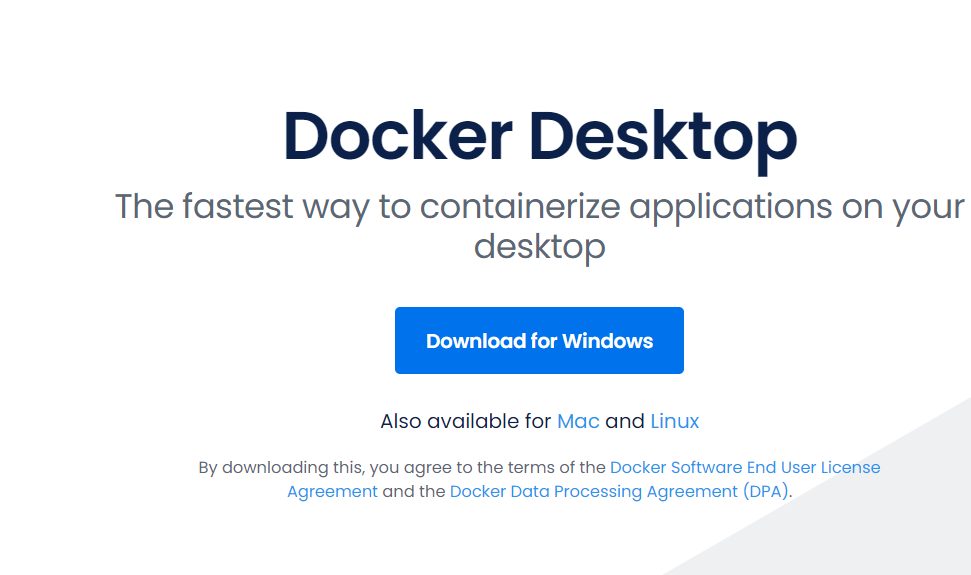
**Step 2: **Select Software Respective to your OS
- On the Docker download page, select "Windows" as your operating system.
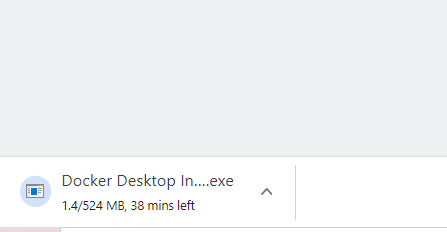
**Step 3: Start the Download
- The download will begin automatically. The duration will depend on your internet speed.
How to Start Docker Desktop?
**Step 4: After installation, open Docker Desktop.
- Accept the Docker Subscription Service Agreement window and click "Continue."
- Docker Desktop will start after accepting the terms and conditions.
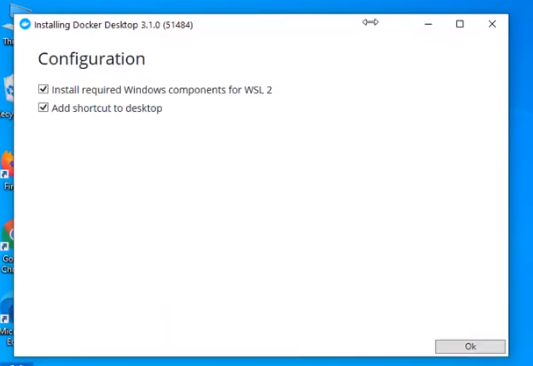
**Step 5: After clicking "OK," the installation will start.
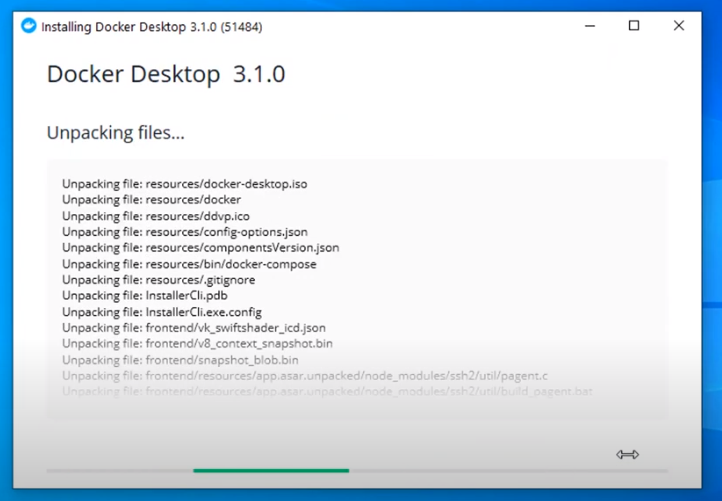
**Step 6: After installation completes, it will show a confirmation screen.
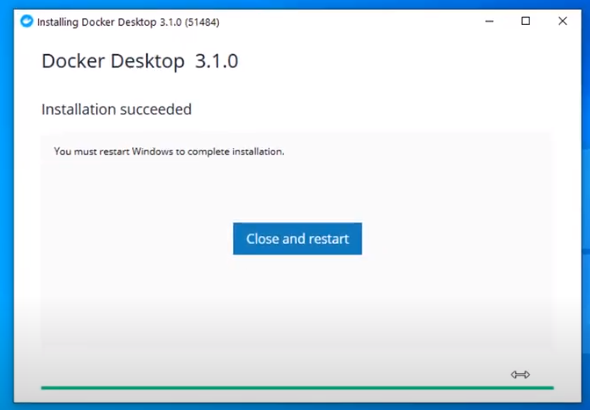
**Step 7: Restart your PC to install WSL 2 (Windows Subsystem for Linux), a compatibility layer for running Linux binary executables natively on Windows 10.
**Step 8: After restarting, a dialog box will appear. Click the "Stop Docker" button.
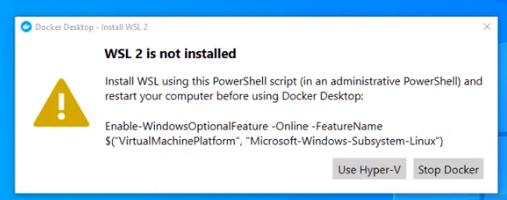
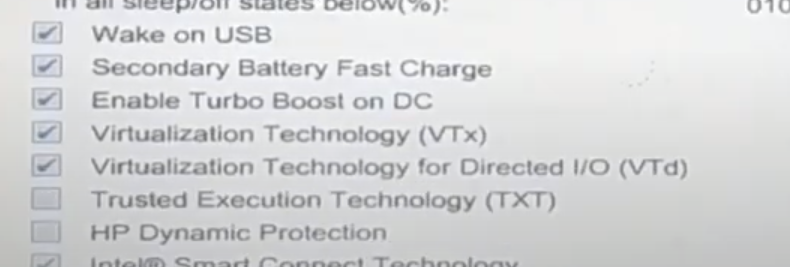
**Step 9: Enable Hyper-V
- Restart your PC and enter the BIOS setup:
- Navigate to Settings > Update and Security > Recovery > Advanced Setup > Device Configuration.
- Ensure the "Enable Turbo Boost on DC" option is marked. Save and exit.
**Step 10: Activate Hyper-V
- Go to Control Panel > Turn Windows Features on or off.
- Check "Hyper-V" and "Windows Hypervisor Platform."
How to Install Docker Desktop from the Command Line?
To install Docker Desktop, follow these procedures:
**Step 1: Run the following command in the Command Prompt:
start /w "" "Docker Desktop Installer.exe" install
**Step 2: Add the user account to the Docker user group:
net localgroup docker-users /add
**Step 3: Verify Docker Installation and Versions
- Open the Command Prompt.
- Run the following command to check the Docker version:
docker --version
- Upon starting Docker for the first time, you will receive a Beta invitation email.
How to Install Docker on Windows 10?
You must perform the following steps in order to install Docker on Windows 10:
**Step 1: Ensure Compatibility
- Verify that your system meets the minimum requirement for Docker: 64-bit Windows 10 Pro.
**Step 2: Download Docker
- Download Docker Desktop from the official website.
**Step 3: Install Docker Desktop
- Complete the installation process.
- Open Docker Desktop from the Start menu.
- Enable Hyper-V and Windows Subsystem for Linux (WSL) features when prompted.
- Docker Desktop will automatically restart after enabling these features.
**Step 4: Verify Installation:
- Open a command prompt or PowerShell window.
- Pull a sample image, such as Nginx, using the following command:
docker pull nginx
- If the image pulls successfully, Docker Desktop has been installed correctly.
How to Install Docker on Windows 11?
First, make sure that your Windows matches Docker's requirement Docker requires 64-bit Windows 11 Pro, and the rest of all the steps are the same as Windows 10 as follows:
You must perform the following steps in order to install Docker on Windows 10:
**Step 1: Ensure Compatibility
- Verify that your system meets the minimum requirement for Docker: 64-bit Windows 10 Pro.
**Step 2: Download Docker
- Download Docker Desktop from the official website.
**Step 3: Install Docker Desktop
- Complete the installation process.
- Open Docker Desktop from the Start menu.
- Enable Hyper-V and Windows Subsystem for Linux (WSL) features when prompted.
- Docker Desktop will automatically restart after enabling these features.
**Step 4: Verify Installation
- Open a command prompt or PowerShell window.
- Pull a sample image, such as Nginx, using the following command:
docker pull nginx
- If the image pulls successfully, Docker Desktop has been installed correctly.
How to Update the Docker in Windows?
By following the steps mentioned below we can update our Docker:
**Step 1: Open Docker Desktop from the Start menu
**Step 2: Click on Settings and navigate to the "Resources" tab. Click on "Check for Updates." Docker Desktop will check for any available updates.
**Step 3: If an update is available, click "Download and Install." Docker Desktop will automatically download and install the update. After completion, you can verify the Docker version by using the following command in Command Prompt or PowerShell:
docker version
Advantages of Docker In Windows
The following are the advantages of Docker in Windows:
- Docker for Windows allows developers to their applications easily on any Windows.
- Docker can be installed very easily on Windows.
- Docker containers can be moved in between Windows and Linux without changing the Source code.
- The application is isolated from the underlying OS which makes it more secure.
The following are the steps to uninstall the docker Desktop Tool:
**Step 1: Find "Add or Remove Programs" in the start menu and choose it.
**Step 2: Click Docker Desktop when you see Docker in the list of installed programs.
**Step 3: Click on Uninstall in Docker Desktop and follow the on-screen instructions.
**Step 4: After the uninstallation is complete, restart the computer.
How to Install and Enable WSL 2 on Windows
Before installing docker by using WSL 2 make sure your Windows is supported for that and then install and enable WSL2 on your laptop.
**Step 1: Enter the following command as an administrator to enable the Windows Subsystem for Linux feature.
dism.exe /online /enable-feature /featurename
:Microsoft-Windows-Subsystem-Linux /all /norestart
**Step 2: In this step, you need to enable the virtual machine platform feature to enable it to run the following command in Powershell as an administrator
dism.exe /online /enable-feature /featurename
:VirtualMachinePlatform /all /norestart
**Step 3: After running the above command you need to restart your computer by this the virtual machine platform feature will be enabled.
**Step 4: Download and install the WSL 2 Linux kernel updated package from the official website of Microsoft
**Step 5: Make WSL 2 the standard version. Run the following command when logged in as an administrator in Windows PowerShell. Install a Linux distribution by using the Microsoft Store. You can pick from a variety of Linux distributions, including Kali Linux, Debian, and Ubuntu.
wsl --set-default-version 2
- After completing the above steps we can use execute Linux commands on your Windows using WSL 2.
**How to Install Docker With WSL 2 Backend on Windows?
Utilizing dynamic memory allocation will help the WSL 2 backend consume resources more efficiently. which enables us to launch Docker very quickly and improve Docker's speed. To make this happen please follow the steps mentioned below.
**Step 1: Install and enable WSL 2 on Windows by following the steps outlined in the previous answers. And install Docker Desktop as mentioned above for Windows.

**Step 2: Once the Docker Desktop installation is completed open the settings in Docker Desktop click on the resources tab and click on WSL 2 integration. Click "Apply & Restart" to apply the changes.
**Step 3: Open a terminal in your WSL 2 distribution and use the following command to confirm that Docker is operational after Docker Desktop has restarted.
docker pull ubuntu

- If the image is successfully retrieved, WSL 2 has likely been deployed as a backend for Docker. The WSL 2 backend now allows you to use Docker to construct and manage containers on your Windows computer.
**Note: The Docker CLI interacts with the Docker daemon running in the Windows Docker Desktop application when you issue Docker commands in your WSL 2 terminal.
How to Install Docker on Windows Without Docker Desktop? A Step-By-Step Guide
The following are the steps that guide you in installing the Docker on Windows without Docker Desktop:
**Step 1: Enable WSL 2
- Open the power shell as administrator and run the following command:
wsl --install

**Step 2: Install a Linux Distribution
- Download and install a Linux distributions from the Microsoft Store (e.g., Ubuntu)

**Step 3: Set a WSL 2 as Default
- Open the PowerShell and set WSL 3 as the default version
wsl --set-default-version 2
**Step 4: Install Docker Engine on WSL 2
- Open your linux distribution and update the packages list:
sudo apt update
- Install the docker using the a shell script as per defining, It looks as follows:
curl -fsSL https://get.docker.com/ -o get-docker.sh
sudo sh get-docker.sh
**Step 5: Start Docker Service
- Start the docker service with the following command:
sudo service docker start
**Step 6: Verify Installation
- Using the following command check the docker version for verifying the installation.
docker --version

**Step 7: Run Docker Commands from Windows
- Install `wsl` command line tool to run the docker commands from the windows command prompt or PowerShell:
wsl docker run hello-world

What's the difference between Docker for Windows and Docker on Windows?
The following are the difference between docker for windows and docker on windows:
| **Aspect | **Docker for Windows | **Docker on Windows |
|---|---|---|
| **Environment | It will run Docker containers using a lightweight VM (Hyper-V/WSL 2). | It will run the Docker containers natively on Windows Server. |
| **Compatibility | It is suitable for development and testing on Windows 10/11. | It is suitable for production environments on Windows Server. |
| **Performance | It used as a VM, which might have slight overhead compared to native. | It runs natively with offering better performance and integration. |
Best practices of using Docker on Windows
The following are the some of the best practices of using Docker on Windows:
- **Use WSL2 Feature: Try to utilize the features of Windows Subsystem for Linux 2 (WSL2) for experiencing better performance and having compatibility to the applications.
- **Optimize Docker Resources: Make adjustments to your resources such as CPU, memory, and disk settings in Docker Desktop for balancing performance and resource usage.
- **Keep Docker Updated: Try to update the Docker Desktop software regularly, so that your containers can be ensured with security while acessing the new features.
- **Utilize Docker Compose: Make use of Docker Compose for managing multi-container applications efficiently.
The following are the some of the common troubleshooting issues related to docker on windows:
- **Hyper-V or WSL2 Not Enabled: Make sure the Hyper-V or WSL2 is enabled in Windows features section for successful installation and work properly with docker.
- **Docker Desktop Won't Start: Try to restart the Docker Desktop or check for updates to resolve startup issues.
- **Network Connectivity Problems: Ensure to configure the network settings or to reset Docker to fix connectivity issues.
- **Insufficient Disk Space: Try to free up the space or increase disk allocation for Docker.
Conclusion
In this article, we covered a step-by-step procedure to install docker in Windows 11 and Windows 10. We also covered how to install docker in Windows 10 and 11 with the help of the Command line. Refer to Install in Mac and Ubuntu to know more about installation in different Operating Systems.