How To Use Docker Desktop To Deploy Docker Containerized Applications (original) (raw)
Last Updated : 23 Jul, 2025
Docker Desktop is an user-friendly tool that simplifies the deployment of Docker containerized applications on your local machine. It provides a graphical interface for managing containers, images, and volumes, making it accessible for developers and DevOps professionals. In this guide, we will walk you through the essential steps of using Docker Desktop, from installation to deploying a simple Nginx application.
Table of Content
- What is Docker Desktop?
- Installation of Docker Desktop
- Getting Started with Docker Desktop
- How to Deploy your First Docker Container with Docker Desktop?
- Managing Multi-Container Applications with Docker Compose
- Difference between Docker and Docker Compose
- Troubleshooting Queries of Docker Container Deployment
- Advantages Docker Desktop
- Disadvantages of Docker Desktop
- Best Practices for maintaining and Securing Docker Containerized Applications
What is Docker Desktop?
Docker Desktop is a lightweight virtualization platform that enables you to run containers on your local machine. Docker Containers are portable and self-contained units that encapsulate an application and its dependencies. Docker Desktop streamlines the development, testing, and deployment processes, making it an integral part of modern application development workflows.
Installation of Docker Desktop
Before we delve into deploying containerized applications, let's get Docker Desktop installed on your machine. Follow these steps based on your operating system:
1. Windows Installation
Visit the Docker website and download the Docker Desktop installer for Windows. Run the installer, following the on-screen instructions. Upon installation, Docker Desktop may prompt you to enable virtualization in your system's BIOS settings. Make sure to do this for optimal performance.
- For further installation guide refer How to install Docker on Windows.
2. MacOS Installation
Download the Docker Desktop installer for macOS from the official Docker website. Open the downloaded package and drag the Docker icon to your Applications folder. Launch Docker Desktop from the Applications folder.
- For further installation guide refer How to install Docker on MacOS.
3. Linux Installation
Install Docker Engine on your Linux distribution by following the official documentation. Download the Docker Desktop package for Linux from the Docker website. Install Docker Desktop by executing the provided commands in the terminal.
Getting Started with Docker Desktop
Now that Docker Desktop is installed, let's explore the basic functionalities.
- **Access to DockerHub:Upon launching Docker Desktop, you may be prompted to sign in with your Docker ID. If you don't have one, you can create it for free. Logging in allows you to access Docker Hub, a cloud-based registry for Docker images.
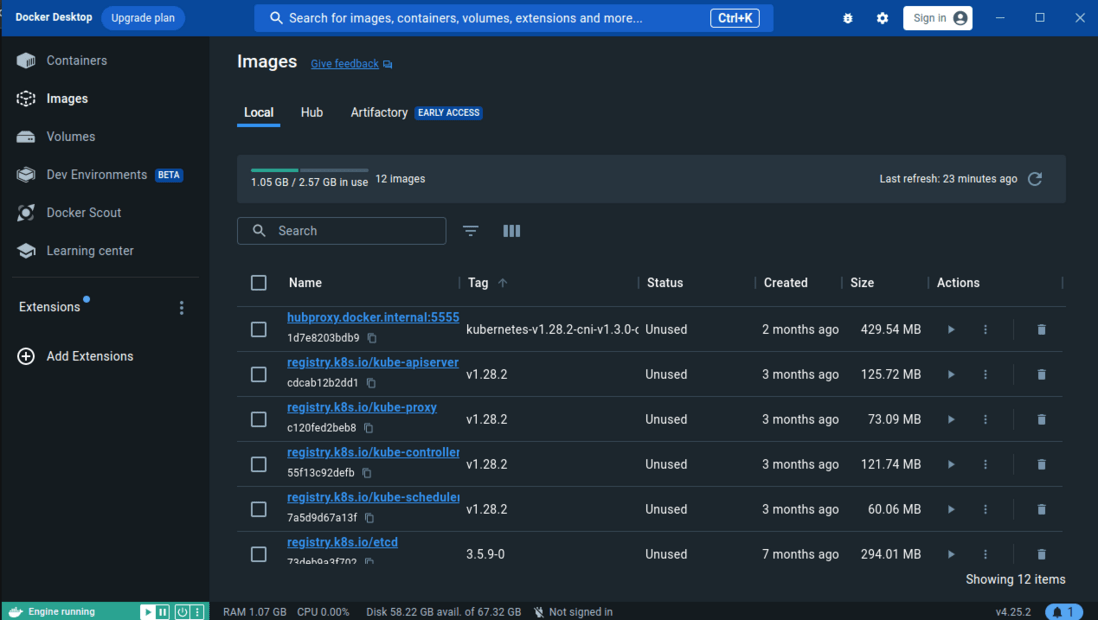
- **Dashboard: The Dashboard serves as the command center, providing an overview of your running containers, available images, and other essential information. It's the first screen you see upon launching Docker Desktop.
- **Containers: In the Containers section, you can manage your running containers. Docker Desktop allows you to start, stop, and remove containers with a simple click, making it a user-friendly way to interact with your applications.
- ****Images:**The Images section displays the Docker images available on your system. You can pull images from Docker Hub, create custom images, and manage image repositories effortlessly.
- **Docker Volumes:Volumes in Docker Desktop are where you manage persistent data storage for your containers. This is crucial for applications that require data persistence beyond the lifespan of a container.
How to Deploy your First Docker Container with Docker Desktop?
Now that Docker Desktop is up and running, let's deploy a basic containerized application using the GUI. For starters, if you want to explore more.
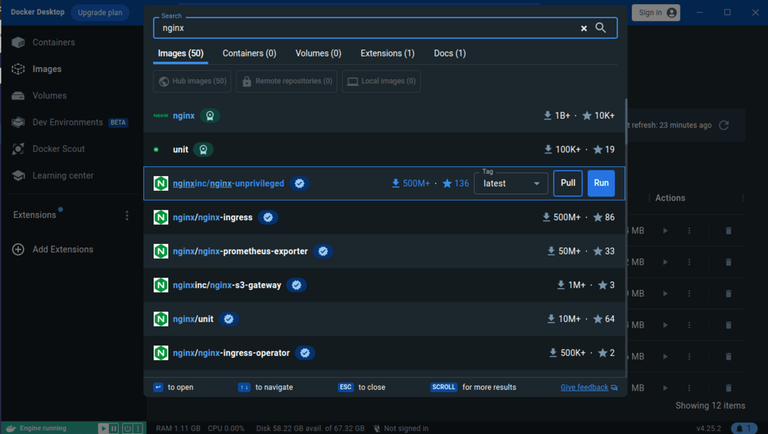
- Open Docker Desktop and navigate to the "Dashboard." Use the search bar to find an image. For example, let's search for the official Nginx image.
- Click on the image to pull it to your local machine. Then Click on run button run the ubuntu, after doing this it show the status “In use” instead of unused. With the container running, open a web browser and navigate to http://localhost:8080\.
- You should see the default Nginx welcome page, indicating a successfully deployed containerized application.
- We can try other images availabe on DockerHub as per our need. But in this article, we will be focusing more on how to run a custom container.
Creating a Dockerfile
- To deploy a custom application, you'll need to create a Dockerfile. This file contains instructions for building a Docker image.
- Here's a simple Dockerfile for an Nginx application:
Use the official Nginx image
FROM nginx:latest
Copy your HTML files into the container
COPY ./html /usr/share/nginx/html
Building and Running the Docker Image
- Open a terminal in the directory containing your Dockerfile. Build the Docker image:
docker build -t my-nginx-app .
.webp)
- Run the Docker container:
docker run -d -p 8080:80 my-nginx-app
- This command maps port 8080 on your host machine to port 80 on the container.

Managing Multi-Container Applications with Docker Compose
Docker Desktop seamlessly integrates with Docker Compose, allowing you to define and manage multi-container applications using a YAML file. The following are the steps that guides you on how to manage the multi-container applications with docker compose:
Step 1: Create a docker-compose.yml File
- In your project directory, create a docker-compose.yml file with the following content:
version: '3'
services:
web:
image: nginx
ports:
- "8080:80"
db:
image: mysql
environment:
MYSQL_ROOT_PASSWORD: example
MYSQL_DATABASE: mydatabase
- This example defines two services: web (Nginx) and db (MySQL). It specifies port mapping for the Nginx service and sets environment variables for the MySQL service.

Step 2: Run Docker Compose
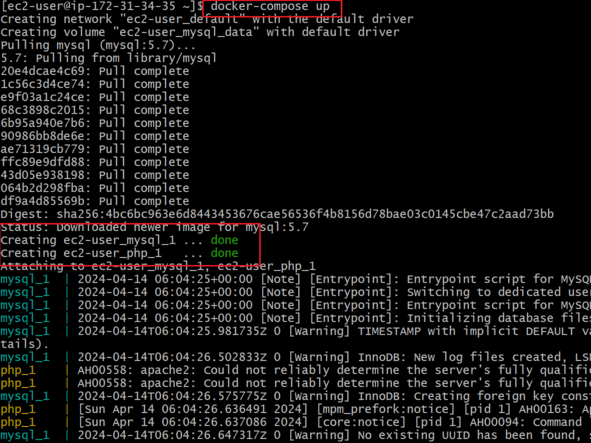
- On the Docker Desktop Dashboard, go to the "File" menu and select "Open Compose." Choose your docker-compose.yml file.
- Docker Desktop will recognize the file and present options to build and run the defined services.
Step 3: Access Your Multi-Container Application
- With Docker Compose running, your multi-container application is accessible just like a single-container application. On visiting the following link, we can interact with the Nginx service in this example:
Difference between Docker and Docker Compose
The following are the difference between Docker and Docker Compose:
| Feature | Docker | Docker Compose |
|---|---|---|
| **Purpose | It is used for managing individual containers. | It is used for managing multi-container applications. |
| **Command-line Tool | It uses docker command for performing operations. | Uses docker-compose command for performing tasks. |
| **Configuration | Container configurations defined in Dockerfiles. | Configurations defined in docker-compose.yml files. |
| **Orchestration | It mainly focuses on single container operations. | it facilitaes with simplifying the orchestration of multiple interconnected containers. |
Troubleshooting Queries of Docker Container Deployment
The following are the troubleshooting queries of Docker Container Deployment:
1. How To Resolve "Docker Desktop fails to start" Issue?
- Try to Ensure that virtualization is enabled in your system's BIOS and Check for conflicting softwares that might be interfering with Docker Desktop.
2. What Are Steps Should Be Taken When Encountered a Failure In Pulling An Image?
- Fiirstly try on verifying your internet connection stability and Next check whether the pulling image exists on Docker Hub Repository or Not.
3. What To Do When the Port Conflict Issue Raised With Error "Port Already In Use"?
- The Port Conflict Issue raise when you are trying to use already assigned and working port for other program, to resolve this try on using Other available ports.
- To know what are the port currently used run the following command.
netstat -tnlp
4. What Steps Should Be Taken When The Docker Application Is Not Accessible From The Host?
- Firstly Ensure the Application binded with the correct port and verify the firewall settings on the host machine to allow traffic to the specified port.
5. How To TroubleShoot Slow Performance Inside a Docker Container?
- Firstly check the resource allocation for the container and then inspect the container logs for errors. Check the Host Mahine respective resources. In addition try on optimizing the applications code if necessary.
Advantages Docker Desktop
The following are the advantages of Docker Desktop:
- **User-Friendly Interface: Docker Desktop helps with providing a simple and user-friendly graphical interface, making it easy usable for developers in managing the docker containers and images.
- **Cross-Platform Support: It is available for Windows, macOS, and Linux platforms. Docker Desktop helps in providing a consistent development environment across different operating systems with reducing compatibility issues.
- **Integrated Tools: It comes with supporting the other tools like Docker Compose and Kubernetes with allowing seamless orchestration and management of multi-container applications.
- **Local Development Environment: Docker Desktop facilitates the developers with allowing them to run and test containerized applications locally before deploying to production, improving development speed and reliability.
Disadvantages of Docker Desktop
The following are the disadvantages of Docker Desktop:
- **Resource Intensive: Docker Desktop can consume significant system resources, which may impact the performance of the host machine, especially on lower-end hardware.
- **Licensing and Cost: Docker Desktop's usage policies and licensing may results with some restrictions and in raise costs for businesses.
- **Limited Integration on Some Platforms: With certain features and integrations, it will be helpful with fully supportivenss or provides optimization on all operating systems.
Best Practices for maintaining and Securing Docker Containerized Applications
The following are the best practices for maintaining and security docker containerized applications:
- **Regularly Update Images and Containers: It is suggested to keep docker images and containers up to date with the latest security patches avoid the expose of vulnerabilities and improve the performance.
- **Implement Principle of Least Privilege: On running the containers with the least amount of privileges necessary we can reduce the risk of security breaches.
- **Use Trusted Base Images: The Source of your base images should be pulled from the trusted registries. Regularly scan images for vulnerabilities using tools like Trivy, Clair we bring security practices for the image.
- **Network Segmentation and Isolation: Utilization Docker's networking features to segment and isolate container networks, limiting communication between containers and reducing the attack surface.
Conclusion
Docker Desktop, with its user-friendly interface, brings the power of containerization to developers without the need for extensive command-line knowledge. This guide has covered the installation of Docker Desktop on Windows, macOS, and Linux, as well as an exploration of its graphical interface for deploying and managing containerized applications. By leveraging Docker Desktop's intuitive features, developers can streamline their workflows and embrace the efficiency and portability that containerization offers in the world of modern software development.