Docker exec (original) (raw)
Last Updated : 23 Jul, 2025
In containerization, the **`docker exec` command stands out as a powerful tool for interacting with running Docker containers. This article explores the capabilities and usage of **`docker exec`, detailing how it facilitates seamless communication and control over containerized applications.
Before trying to run the Docker commands ensure that the Docker software is set up and the service is active. Check the status of the docker service with the command **`systemctl status docker` If the status is **active then the docker service is ready to use and perform the container operations and management. To start the docker service try to run the following command
systemctl start docker
( or ) To automatically start the docker service, Once the base OS is started try to use this command:
systemctl enable docker --now
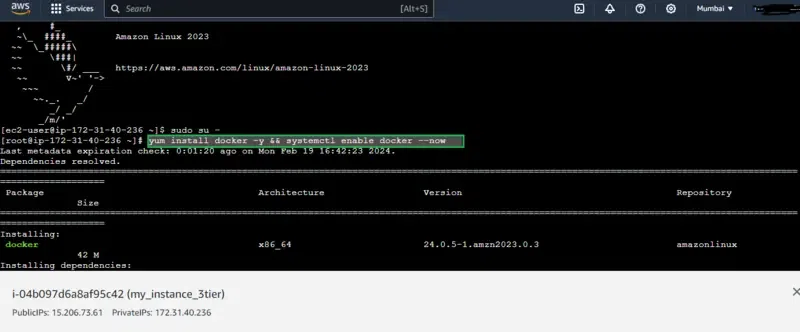
For Installation refer to the Article - How to Install Docker on Linux Distributions
Table of Content
- What is Docker Exec?
- Options of Docker Exec
- Examples of Docker Exec Command
- How to start and run a Docker Container?
- Finding the Name of a Docker Container
- Running an Interactive Shell in a Docker Container
- Running a Command Non-interactively in a Docker Container
- Running Commands in an Alternate Directory in a Docker Container
- Running Commands as a Different User in a Docker Container
- Passing Environment Variables into a Docker Container
- Run a Command from Outside the Container
- Access the Running Container’s Shell
- Common Errors with the `docker exec` Command
- Advanced Usage of docker exec for Efficient Container Management
- Difference between Docker run and Docker exec
- Conclusion
- Docker Exec - FAQs
What is Docker Exec?
The `docker exec` is a docker command that allows users to run commands inside a running Docker container, bridging the gap between the container environment and the host system. This command opens up possibilities for troubleshooting and debugging. It performs administrative-related tasks within a live container.
Options of Docker Exec
The following are the options of Docker Exec Command:
| Option | Description |
|---|---|
| -d, --detach | Runs the command in the background |
| -i, --interactive | Keeps STDIN open even if not attached |
| -t, --tty | Allocates a pseudo-TTY (useful for interactive commands) |
| -u, --user | Specifies the user to run the command as |
| -w, --workdir | Sets the working directory inside the container |
Examples of Docker Exec Command
The following are the examples of docker exec command:
1. Run a Command in a Container
docker exec ls /app
2. Run an Interactive Bash Shell
docker exec -it /bin/bash
3. Run a Command as a Different User
docker exec -u whoami
How to start and run a Docker Container?
The docker exec command is used to know the container that is running. So to execute the command you need a container which is already running if any container is running in the docker you can execute the command on that container.
- To know the containers which are running in the docker you can use the following command to list all the docker containers.
docker ps
- The above command is used to list all the containers that are running in the docker host. Know to take the container **** or ** and use it with the docker exec command.
- If there is no container is running in your docker host then run a sample container by using the following command.
docker run
Example
- Run the following command in your docker environment, here we are using docker image as tomcat customed by us:
docker run -d -p 80:80

Finding the Name of a Docker Container
To execute the docker exec command you need to know the **** or ** which is already running or the container that you have ruined for the test purpose.
- For that, you can use the docker ps command it will list all the docker containers as discussed above in the Starting a test container. To know more about the docker ps command you can refer to the Docker Commands.
- You can also rename the docker container according to your requirements by using the following command.
docker rename
Example
Here, we are renaming my exist running container with **exciting_chandrasekhar with new name as mycontainer1.
docker rename condescending_panini test_image

Running an Interactive Shell in a Docker Container
The main reason behind to interact with the shell container is to to do some debugging like in the production servers you may face issues like the docker container was restarting automatically for certain interval of time in that case you can interact with the docker container shell and you perform the debugs.
The Second scenario can be you want to install some packages in that application which is running inside the docker container in that case you can interact directly with the container shell and perform the installation which are required.
- To interact with the docker shell you can use the following command and refer to the screenshot attached below.
docker exec -it Or bin/bash
.png)
Running a Command Non-interactively in a Docker Container
In the above example you are going to interact with the docker container shell. In some cases there is no need of interacting with the docker container you can directly install or perform the debugging operations just bu running the following command.
docker exec
Example
- In my current docker environment mycontainer named container is running in that I will demonstrate by running a command non interactively:
docker exec mycontainer date

- The major difference between the interactive and non-interactive is that security interacting every time with the docker container shell will creates security concerns.
Running Commands in an Alternate Directory in a Docker Container
In some use cases like while downloading any type of software or package they will use the ****/opt directory**. Instead of changing to that directory manually each time, you can run commands directly in the desired directory using the docker exec command with the --workdir option.
docker exec --workdir /opt pwd
Example
- In the following example we are changing the working directory of the container to /opt. The following screenshot illustrates it clearly.
docker exec --workdir /opt mycontainer pwd
- ****"pwd"** will prints the present working directory.

Running Commands as a Different User in a Docker Container
Running the commands as a different user is one of the best practices which is followed by everyone in the production server. The reasons are mentioned below.
- **Security: Minimizes the risk of privilege escalation attacks by avoiding the use of the root user for everyday operations.
- **Isolation: Enhances the isolation of processes, ensuring that different applications and services run with appropriate permissions.
Docker community prefers this practice, Use the following command to run the docker commands as an another user
docker exec --user ec2-user yum update
Example
The following command will run the docker command in the docker container as an ec2-user and it will update the yum package.
docker exec --user myuser mycontainer apt update
Passing Environment Variables into a Docker Container
Environmental variable in the docker are used to perform the configurations in the docker container instead of hard coding the values you set them as an variable so you can pass them or changes them according to the requirements. Follow the steps mentioned below to pass the environmental variable of docker container.
How to Set ENV variables for a Docker Container? A Step-By-Step Guide
The following are the steps that guides on how to set the env variables for a docker container:
**Step 1: Use the "**-e flag" to set the environmental variable as show below.
docker exec -e :
**Step 2: Use the env command at the end of the above command it will print outs the all the environmental variables in the docker container. As shown below
docker exec -e : env
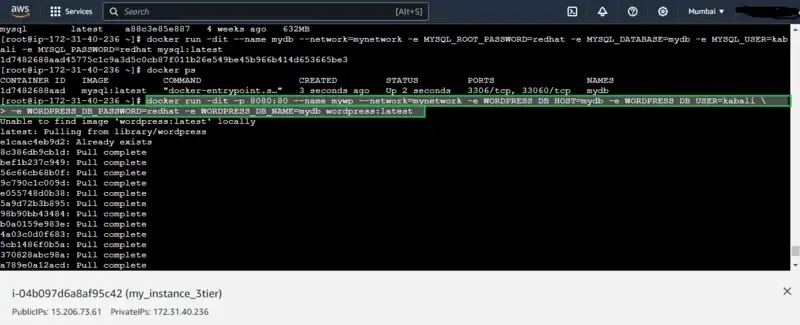
**Example docker exec with env variables
- You want to set the webapplication for the PROD variable then you can use as the following.
docker run -dit -p 8080:80 --name mywp -e WORKPRESS_DB_HOST=mydb \
-e WORDPRESS_DB_USER=kabali -e WORDPRESS_DB_PASSWORD=redhat \
-e WORDPRESS_DB_NAME=mydb wordpress:latest
Run a Command from Outside the Container
No need to access the docker container each and every time when you want to run the command inside the docker container. You can run the docker container command from the outside of the docker container so it will helps you to inspect the docker container and run the docker command at the same time for that you can use the following command.
docker exec cat /file.txt
- It will show all the content in the the file.txt with out need of interacting with container.
Access the Running Container’s Shell
Acessing the running container shell will give you full command on the container it will be like executing the commands in the virtual machine to interact with the container shell you can use the following command
docker exec -it <Name of the container /bin/bash
- The reason we are giving the /bin/bash is it will start the interacting with the bash shell.

**Common Errors with the `docker exec` Command
When using the `docker exec` command, you may run into some frequently encountered issues:
Error: No such container: container-name
This error indicates that Docker cannot find the specified container, which may be due to a typo or the container not being active. To resolve this, you can run **docker ps to list all running containers and confirm the correct container name.
Error response from daemon: Container container-ID is not running
This message means that while the container exists, it is currently stopped. You can restart the container by executing the command **docker start container-name.
Error response from daemon: Container container-name is paused, unpause the container before exec
This error occurs when the container is paused. To continue, you must first unpause the container by using the command `docker unpause container-name`. This will allow you to proceed with executing further commands.
Advanced Usage of docker exec for Efficient Container Management
To take full advantage of docker exec, you can explore advanced use cases to improve your workflow and container management:
**Running Background Processes
You can execute background tasks or long-running processes inside a container without needing to attach an interactive terminal:
docker exec container_name some_process &
**Attaching to Existing Processes
Use docker exec to attach to a running process inside a container. This is useful for attaching to a debug session or ongoing script execution.
**Monitoring System Resources Inside a Container
Check for system resources like CPU and memory consumption using commands like top or htop:
docker exec -it container_name top
This helps you monitor the container's performance in real-time without accessing the host machine.
**Executing Scripts or Configuration Changes
Quickly apply configuration changes or run scripts inside a running container. For example:
docker exec -it container_name bash -c "echo 'New Config' > /etc/config/file"
Difference between Docker run and Docker exec
The following are the difference between docker run and docker exec:
| Feature | docker run | docker exec |
|---|---|---|
| **Purpose | Creates and starts a new container | Runs a command in an already running container |
| **Container State | Starts a new container instance | Requires an existing running container |
| **Use Case | Initial setup, launching new applications | Performing tasks or commands in active containers |
| **Resource Allocation | Allocates resources and applies configurations | Utilizes existing container resources |
| **Command Example | docker run ubuntu:latest /bin/bash | docker exec -it <container_name> /bin/bash |
People Also Read
| Article | Link |
|---|---|
| Install Docker on Ubuntu | Read |
| Install Docker on Windows | Read |
| Install Docker on Mac OS | Read |
Conclusion
In conclusion, the `****docker exec**` command is mostly used for providing a seamless interaction with running containers. It is useful in troubleshooting the issues, performing the maintenance tasks and for conduction of security audits. `docker exec` provides the ability to enter inside the container environment and to execute the commands effortlessly. Mastering this command enhances control over container applications working more efficient and streamlined container management workflow.