Networking Commands in Linux (original) (raw)
Last Updated : 7 Jan, 2026
Networking commands in Linux are used to configure, monitor, test, and troubleshoot network connections. These commands help users and administrators manage IP addresses, network interfaces, routing tables, firewall rules, and data transfers across local and remote systems.
- Check network connectivity and diagnose issues
- Configure network interfaces and IP settings
- Monitor network traffic and bandwidth usage
- Transfer data securely between systems
Below is a list of commonly used Networking Commands in Linux
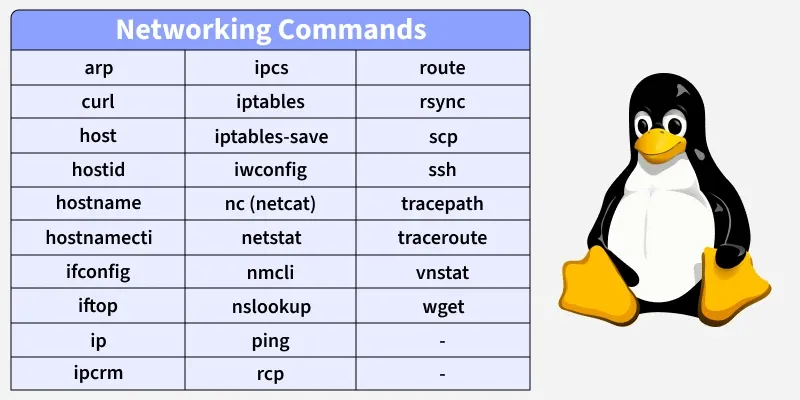
Networking Commands in Linux
1. arp
The arp command in Linux is used to view and manage the ARP cache, which maps IP addresses to MAC addresses on your local network. It is very useful for troubleshooting local network issues, verifying connectivity, and understanding which devices are currently reachable on your LAN.
- Shows the MAC address associated with an IP address.
- Helps verify if your system knows the hardware address of other devices on the network.
- Useful for detecting duplicate IP addresses or network misconfigurations.
**Syntax:
arp [options]
**Example : View ARP Cache
arp -a

2. curl
The curl command is used to transfer data to or from a server using various protocols like HTTP, HTTPS, FTP, SMTP, and more. It is commonly used for testing APIs, downloading files, and interacting with web services from the terminal.
- Works with URLs to send or receive data.
- Supports multiple protocols including HTTP, HTTPS, FTP, and SMTP.
- Useful for automated scripts, API testing, and downloading files.
**Syntax:
curl [options] URL
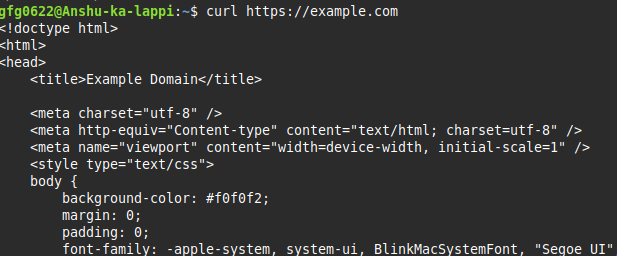
**Example : Fetch a Web Page
curl https://example.com
3. host
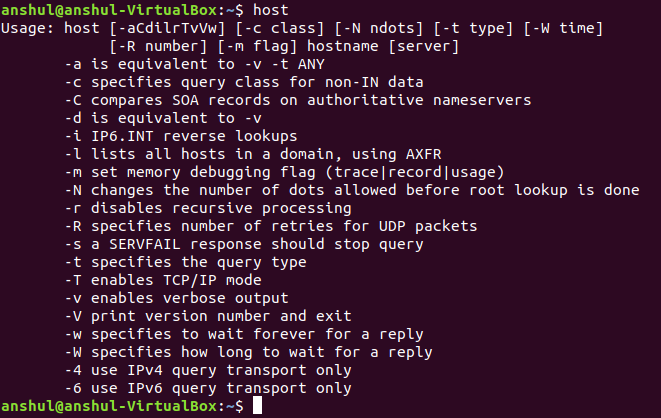
The host command is used to perform DNS lookups and resolve domain names into IP addresses. It is useful for troubleshooting DNS issues, checking domain configurations, or verifying DNS records.
- Resolves domain names to IP addresses.
- Can retrieve various DNS records like A, MX, NS, and CNAME.
- Helps identify DNS misconfigurations or propagation issues.
**Syntax:
host domain_name
**Example :
host
4. hostid
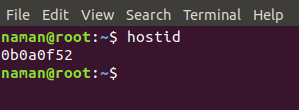
The hostid command is used to show the unique identifier of a Linux system. This identifier is usually a 32-bit hexadecimal number tied to the system hardware or configuration. It is mainly used for software licensing, system identification, or network-based authentication.
- Displays a unique numeric ID for the system.
- Mostly used by applications for licensing purposes.
- Helps administrators verify system identity across networks or clusters.
**Syntax:
hostid
**Example: Display Host ID
hostid
5. hostname
The hostname command in Linux is used to view or temporarily change the system’s hostname. The hostname is the name that identifies your system on a network, making it easier to recognize and manage computers, especially in servers or multi-machine setups.
- Displays the current system hostname.
- Can temporarily change the hostname until the next reboot.
- Useful for testing network configurations or scripts that rely on hostnames.
**Syntax:
hostname [name]
**Example : Display Current Hostname
hostname
.webp)
6. hostnamectl
The hostnamectl command in Linux is used to view and permanently manage the system hostname on modern systems that use systemd. Unlike the hostname command, changes made with hostnamectl persist across reboots.
- Displays current static, transient, and pretty hostnames.
- Changes the hostname permanently for the system.
- Useful for server setup, scripts, and network identification.
**Syntax:
hostnamectl set-hostname name
**Example : View Current Hostname Information
hostnamectl
7. ifconfig
The ifconfig command in Linux is used to display and configure network interfaces. It’s one of the older networking utilities but still widely used for quickly checking interface status and IP configuration. On modern systems, it has mostly been replaced by the ip command, but it remains useful for simple tasks and troubleshooting.
- Shows the IP address, netmask, and broadcast address of interfaces.
- Can enable (up) or disable (down) network interfaces.
- Useful for diagnosing network issues and monitoring interfaces.
**Syntax:
ifconfig [interface]
**Example : Display All Active Network Interfaces
ifconfig

8. iftop
The iftop command in Linux is a real-time network monitoring tool that shows bandwidth usage per interface. Unlike ifconfig, which displays static information, iftop actively monitors network traffic and shows which hosts are communicating and how much data is being transferred. It is extremely useful for identifying bandwidth hogs, troubleshooting network congestion, and observing live traffic.
- Displays network traffic per interface.
- Shows source and destination addresses with bandwidth usage.
- Provides a live, updating view of network activity.
- Helpful for detecting unusual network activity or performance bottlenecks.
**Syntax:
iftop
**Example : Monitor Traffic on Default Interface
iftop

Note : After running the command, this interface will show
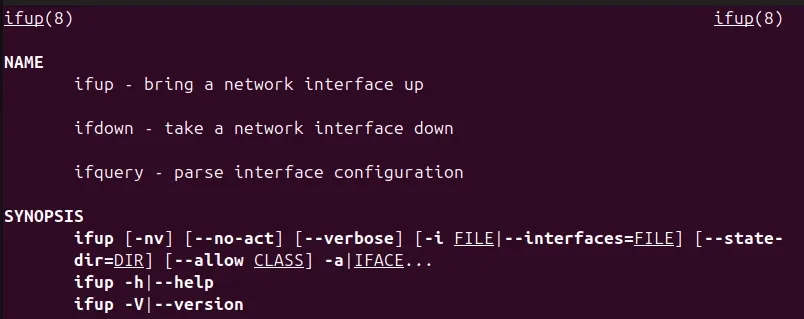
9. ifup
The ifup command in Linux is used to activate or enable a network interface that is configured in the system. It reads network interface configurations (typically from /etc/network/interfaces on Debian-based systems or /etc/sysconfig/network-scripts/ on RedHat-based systems) and brings the interface up so it can start sending and receiving data.
- Activates a configured network interface.
- Useful for enabling interfaces after boot, after editing network configuration files, or recovering from interface down events.
- Works with both wired (Ethernet) and wireless (Wi-Fi) interfaces.
- Requires root privileges to modify interface states.
**Syntax:
ifup interface_name
**Example:
ifup
10. ip
The ip command in Linux is a powerful and versatile tool for managing network interfaces, addresses, routes, and tunnels. It is a modern replacement for older commands like ifconfig, route, and arp, and is part of the iproute2 package.
- Manage IP addresses, network interfaces, routing tables, and tunnels.
- Replaces older tools (ifconfig, route) with a single consistent command.
- Provides detailed information about the network stack.
- Useful for configuring static IPs, inspecting interface states, and troubleshooting.
**Syntax:
ip [options]
**Example : Show IP Addresses of All Interfaces
ip addr show

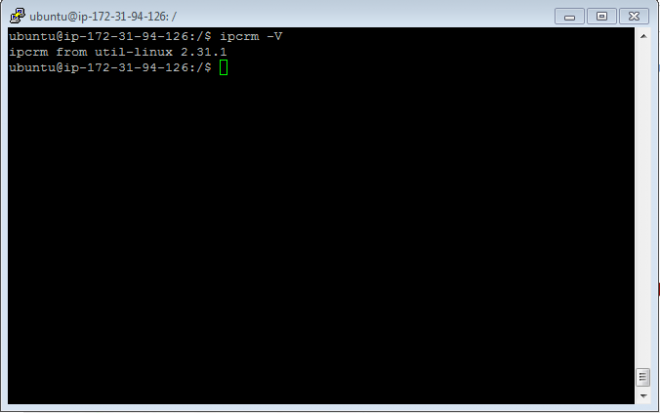
11. ipcrm
The ipcrm command in Linux is used to remove System V Inter-Process Communication (IPC) resources. These resources include shared memory segments, message queues, and semaphores, which are used for communication between processes. Over time, unused IPC resources can accumulate and need cleanup, especially on servers or long-running systems.
- Deletes IPC resources to free system memory.
- Prevents resource conflicts or "resource full" errors.
- Works only on resources created with System V IPC mechanisms.
**Syntax:
ipcrm [options]
**Example:
ipcrm -V
12. ipcs
The ipcs command in Linux is used to display information about System V Inter-Process Communication (IPC) resources. It helps administrators and users see what shared memory segments, message queues, and semaphores exist on the system. This is often used in combination with ipcrm to clean up unused resources.
- Shows shared memory segments, message queues, and semaphores.
- Displays owner, permissions, IDs, and size of IPC resources.
- Helps monitor and troubleshoot processes that rely on IPC mechanisms.
- Essential for managing resources on multi-user or long-running systems.
**Syntax:
ipcs
**Example : Display All IPC Resources
ipcs -a

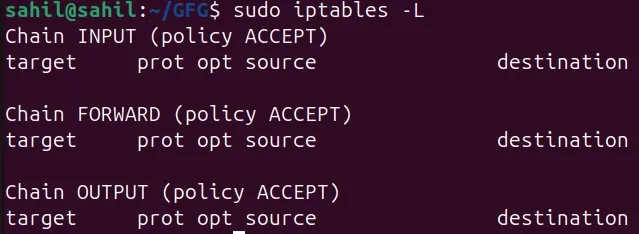
13. iptables
The iptables command in Linux is a powerful tool to configure, manage, and monitor firewall rules. It operates at the kernel level and allows you to control incoming, outgoing, and forwarded network traffic. System administrators use it to implement security policies, block unwanted traffic, and protect servers from attacks.
- Controls packet filtering for IPv4 networks.
- Manages chains (INPUT, OUTPUT, FORWARD) and rules in tables (filter, nat, mangle, raw).
- Can allow, drop, or reject traffic based on IP address, port, protocol, or interface.
- Essential for securing servers and networked systems.
- Works in combination with scripts to automate firewall configurations.
**Syntax:
iptables [options]
**Example : View Current Firewall Rules
sudo iptables -L
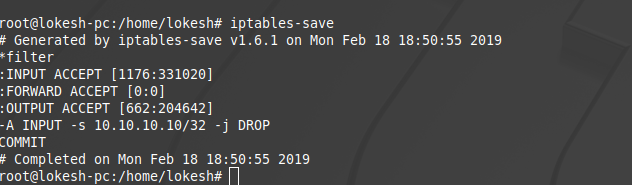
14. iptables-save
The iptables-save command in Linux is used to export the current iptables configuration to a file. This is particularly useful for backing up firewall rules or transferring them to another system. The saved rules can later be restored using iptables-restore.
- Captures all rules, chains, and tables in their current state.
- Output is in a format that can be directly used with iptables-restore.
- Helps persist firewall configurations across reboots or system migrations.
- Does not modify any rules itself; it only outputs them.
**Syntax:
iptables-save > file_name
**Example : Save Firewall Rules to a File
iptables-save
15. iwconfig
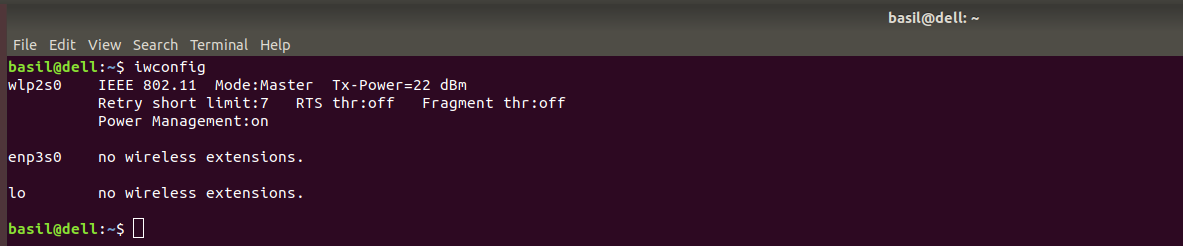
The iwconfig command in Linux is used to view and configure wireless (Wi-Fi) network interfaces. It is similar to ifconfig but specifically for wireless devices. This command helps monitor Wi-Fi parameters, check connection quality, and set wireless options like SSID, mode, and frequency.
- Displays information such as SSID, frequency, signal strength, and bit rate.
- Can change wireless settings, including mode (Managed, Ad-Hoc), channel, and transmit power.
- Useful for troubleshooting wireless connections or monitoring Wi-Fi networks.
- Works on interfaces like wlan0, wlp2s0, etc.
**Syntax:
iwconfig
**Example : View Wireless Interface Information
iwconfig
16. nc (netcat)
The nc command, commonly known as Netcat, is a versatile networking utility used to read and write data over TCP or UDP connections. It is often called the “Swiss Army knife of networking” because it can perform port scanning, network debugging, file transfers, and even act as a simple server or client.
- Can connect to remote hosts and ports to test availability.
- Useful for debugging network services like HTTP, SMTP, or custom TCP/UDP protocols.
- Can transfer files over the network without needing additional tools.
- Works as both client and server.
**Syntax:
nc [options] host port
**Example:
nc -zv google.com 80

17. netstat
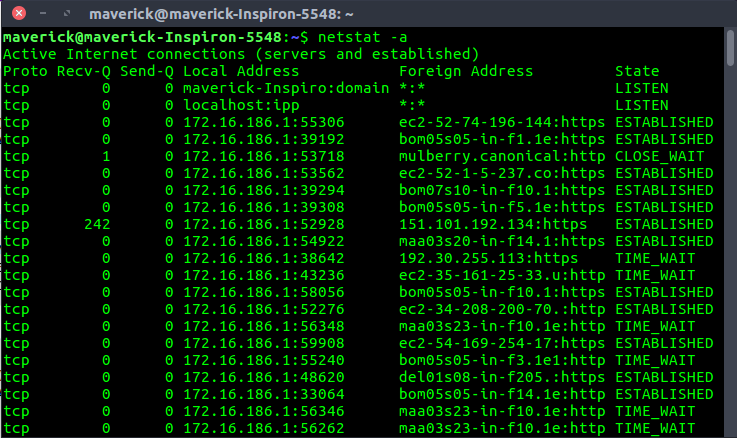
The netstat command in Linux is a powerful utility used to monitor network connections, routing tables, interface statistics, and more. It helps users and administrators diagnose network issues, check active connections, and analyze traffic on the system.
- Displays all active TCP/UDP connections along with their status.
- Shows listening ports and which applications are using them.
- Can display routing tables, helping troubleshoot network reachability.
- Useful for diagnosing network problems and monitoring traffic.
**Syntax:
netstat [options]
**Example : Display All Active Connections
netstat -a
18. nmcli
The nmcli command in Linux is a command-line tool for managing NetworkManager, which handles network connections and devices. It is widely used on desktop and server systems to configure, monitor, and troubleshoot network connections without using a graphical interface.
- Controls network interfaces such as Ethernet and Wi-Fi.
- Enables connecting, disconnecting, and modifying network connections.
- Can display device status, IP addresses, and connection details.
- Useful for scripting network management tasks or configuring networks on headless systems.
**Syntax:
nmcli [options]
**Example : Check Status of All Network Devices
nmcli dev status

19. nslookup
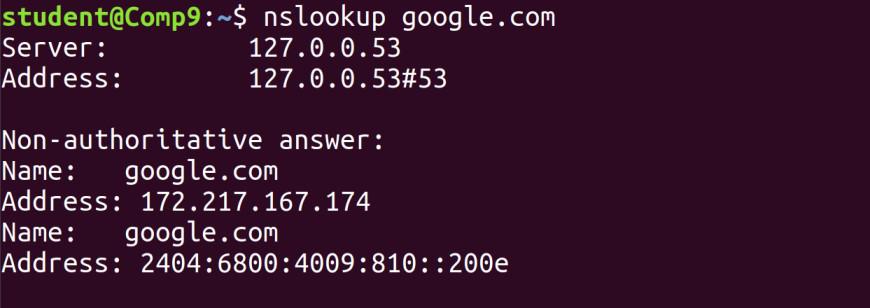
The nslookup command in Linux is used to query Domain Name System (DNS) servers and retrieve information about domain names, IP addresses, and DNS records. It is a helpful tool for network troubleshooting, diagnosing DNS issues, and verifying domain resolution.
- Resolves domain names to IP addresses and vice versa.
- Can retrieve different types of DNS records, such as A, MX, CNAME, and NS.
- Useful for checking if a DNS server is working correctly or if a domain is properly configured.
- Often used by system administrators and network engineers for troubleshooting.
**Syntax:
nslookup domain_name
**Example : Basic Domain Lookup
nslookup google.com
20. ping
The ping command in Linux is used to test the reachability of a host or IP address on a network. It is one of the most common network troubleshooting tools used to verify whether a system is online, measure round-trip time, and detect packet loss.
- Sends ICMP Echo Request packets to the target host.
- Waits for ICMP Echo Reply to confirm connectivity.
- Shows response time, packet loss, and network latency.
- Helps identify network issues between local and remote systems.
**Syntax:
ping host
**Example : Basic Connectivity Test
ping www.google.com

21. rcp
The rcp command in Linux is used to copy files between remote systems over a network. It is part of the r-command suite (like rlogin and rsh) and works over the TCP/IP protocol, but it is less secure than modern alternatives like scp or rsync because it does not encrypt data.
- Copies files from local to remote, remote to local, or between two remote hosts.
- Useful for quick file transfers in trusted environments.
- Requires remote shell access (rsh) to the target system.
- Less secure; mostly replaced by scp and rsync.
**Syntax:
rcp source destination
**Example : Copy Local File to Remote System
rcp file.txt user@192.168.1.10:/home/user/
- Copies file.txt from the local system to the /home/user/ directory on the remote system.
- Requires authentication (usually a password) for the remote user.
“An older remote copy command, largely replaced by SCP.”
22. route
The route command in Linux is used to view and manipulate the system’s routing table. The routing table determines how network packets are forwarded to their destinations, making this command essential for network configuration, troubleshooting, and debugging.
- Displays active routes for all network interfaces.
- Configures default gateway and specific network routes.
- Helps troubleshoot connectivity issues by identifying where packets are being sent.
- Older command, largely replaced by the modern ip route command, but still widely used.
**Syntax:
route [options]
**Example : Display Routing Table
route

23. rsync
The rsync command in Linux is a fast and versatile tool for copying and synchronizing files and directories between local and remote systems. It is widely used for backups, incremental transfers, and server-to-server file synchronization because it only transfers the differences between the source and destination, saving bandwidth and time.
- Efficiently synchronizes files across directories or systems.
- Can work locally or over a network using SSH.
- Preserves file permissions, ownership, timestamps, and symbolic links.
- Supports incremental backups, meaning only changed files are copied.
**Syntax:
rsync [options] source destination
**Example:
rsync foo/

24. scp
The scp (Secure Copy) command in Linux is used to transfer files securely between local and remote systems over SSH. Unlike older commands like rcp, scp encrypts data in transit, making it safe for transferring sensitive files.
- Transfers files or directories locally, to remote, or from remote systems.
- Uses SSH for encryption, ensuring data security.
- Can preserve file permissions, ownership, and timestamps.
- Supports recursive copying for directories with -r.
**Syntax:
scp source destination
**Example : Copy a File to a Remote System
$ scp file.txt user@remote:/home/user/
file.txt 100% 12KB 12.0KB/s 00:01
25. ssh
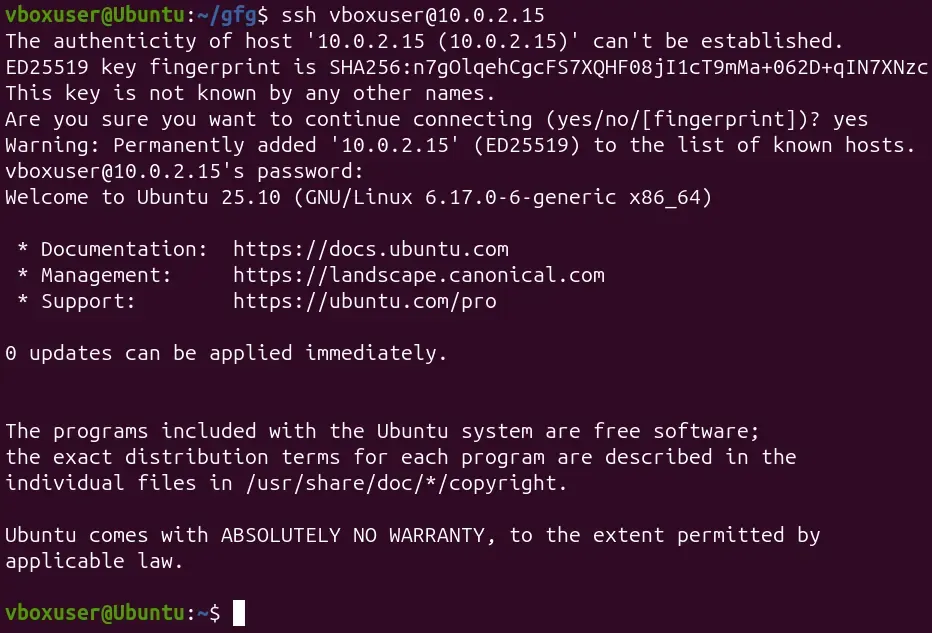
The ssh (Secure Shell) command in Linux is used to connect securely to remote systems over the network. It provides an encrypted channel for logging into a remote machine, executing commands, and transferring files, replacing older, insecure protocols like telnet or rsh.
- Encrypts all data, including passwords, ensuring secure communication.
- Can execute commands remotely without opening an interactive session.
- Supports port forwarding, tunneling, and agent-based authentication.
- Widely used for server administration, remote troubleshooting, and automation.
**Syntax:
ssh user@host
**Example : Connect to a Remote System
26. tracepath
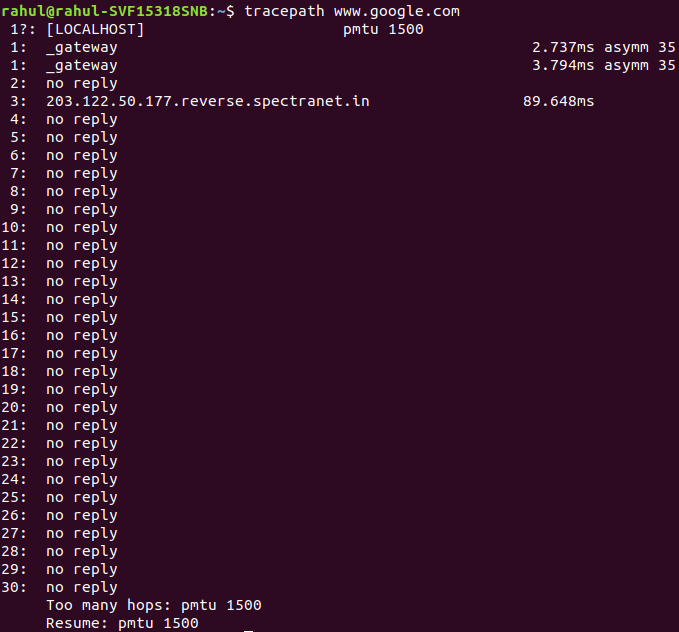
The tracepath command in Linux is used to trace the network route from your system to a destination host. It helps identify the path packets take, including the intermediate routers, and can also detect Maximum Transmission Unit (MTU) issues along the path. Unlike traceroute, tracepath does not require superuser privileges, making it easy for general users to diagnose network issues.
- Shows each hop (router) along the path to the destination.
- Displays latency for each hop.
- Helps troubleshoot connectivity issues, detect bottlenecks, and find MTU-related problems.
- Useful for network diagnostics and path optimization.
**Syntax:
tracepath host
**Example : Trace Path to Google
tracepath www.google.com
27. traceroute
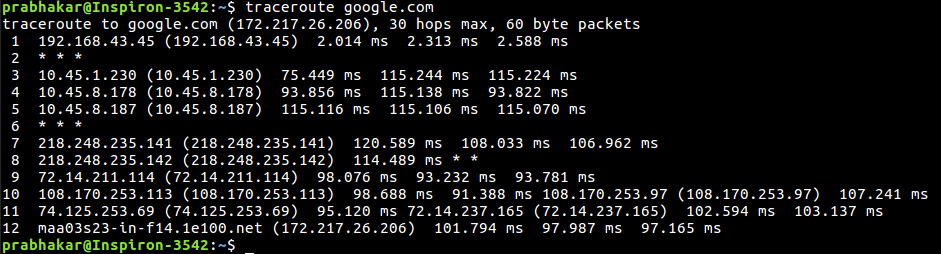
The traceroute command in Linux is used to display the route packets take from your system to a destination host. It shows all the intermediate hops (routers) along the path, helping users diagnose network connectivity issues, bottlenecks, or routing loops. Unlike tracepath, traceroute provides more advanced options and detailed control, but it may require root privileges to see full results in some cases.
- Lists all hops between your system and the destination.
- Displays response time (latency) for each hop.
- Helps troubleshoot network delays, packet loss, or unreachable nodes.
- Useful for network analysis and performance monitoring.
**Syntax:
traceroute host
**Example : Trace Route to Google
traceroute google.com
28. vnstat
The vnstat command in Linux is a lightweight network monitoring tool that tracks the amount of data transmitted and received over network interfaces. Unlike real-time monitors like iftop, vnstat logs historical traffic statistics, making it useful for analyzing bandwidth usage over time without consuming much system resources.
- Monitors daily, monthly, and yearly traffic for interfaces.
- Works in the background; no continuous polling needed.
- Helps identify data usage trends and monitor network consumption.
- Lightweight, does not capture packets, so minimal system load.
**Syntax:
vnstat
**Example : Show Statistics for All Interfaces
vnstat

29. wget
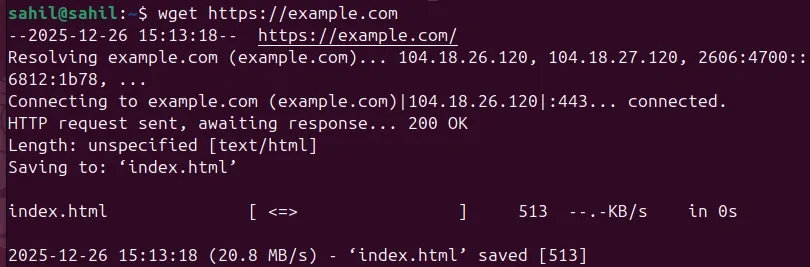
The wget command in Linux is a non-interactive network downloader used to retrieve files from web servers. It supports protocols like HTTP, HTTPS, and FTP and is highly versatile for automated or scripted downloads. Because it works non-interactively, wget can run in the background and resume downloads if interrupted.
- Downloads files from the web directly to your system.
- Can resume interrupted downloads using the -c option.
- Supports recursive downloads, allowing entire websites to be mirrored.
- Can work behind proxies or with authentication for secure downloads.
**Syntax:
wget URL
**Example : Download a Single File
wget https://example.com
Download a single file