What are Widgets in Tkinter? (original) (raw)
Last Updated : 10 Sep, 2025
**Tkinter is Python's standard GUI (Graphical User Interface) package. **tkinter we can use to build out interfaces- such as buttons, menus, **interfaces, and various kind of entry fields and display areas. We call these elements **Widgets.
In Tkinter, a widget is essentially a graphical component that the user can interact with. They can range from simple elements like buttons and labels to more complex ones like text entry fields, listboxes, and canvases. Each widget serves a specific purpose and can be customized to fit the design and functionality requirements of your application.
Each widget in Tkinter is an instance of a specific class defined in the Tkinter Module. These classes provide methods and attributes that allow you to configure the widget's appearance, behavior, and functionality. Widgets are typically added to the application's window or frames using layout managers like pack(), grid(), or place(), which determine their position and size within the interface.
**Example:
Python `
from tkinter import *
create root window
root = Tk()
frame inside root window
frame = Frame(root)
geometry method
frame.pack()
button inside frame which is
inside root
button = Button(frame, text='Geek') button.pack()
Tkinter event loop
root.mainloop()
`
**Output :
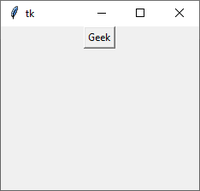
Tkinter supports the below mentioned core widgets -
| Label | Display static text or images. |
|---|---|
| **Button | It is used to add buttons to your application |
| **Entry | It is used to input single line text entry from user |
| **Frame | It is used as container to hold and organize the widgets |
| **RadioButton | It is used to implement one-of-many selection as it allows only one option to be selected |
| **Checkbutton | Create checkboxes for boolean options. |
| **ListBox | Display a list of items for selection. |
| **Scrollbar | Add scrollbars to widgets like Listbox. |
| **Menu | It is used to create all kinds of menu used by an application |
| **Canvas | Draw shapes, lines, text, and images. |
| Widgets | Description |
|---|---|
| **Text | Create a multiline text input with advanced editing capabilities. |
| **ComboBox | Provide a dropdown list with editable text entry. |
| **Scale | Create a scale widget for selecting values within a range. |
| **TopLevel | Create additional windows/dialogs. |
| **Message | Display simple messages or notifications. |
| **MenuButton | Create a button that opens a menu. |
| **ProgressBar | Show progress of a task. |
| **SpinBox | Provide a numerical input with up/down arrows. |
| Widgets | Description |
|---|---|
| **ScrolledText | Create a text widget with built-in scrollbars. |
| **Treeview | Display hierarchical data in a tree-like structure. |
| **MessageBox | Display dialog boxes for messages, warnings, etc. |
| **Treeview Scrollbar | Add scrollbars to Treeview widgets. |
Geometry Management
Creating a new widget doesn’t mean that it will appear on the screen. To display it, we need to call a special method: either **grid, **pack(example above), or **place.
| **Method | **Description |
|---|---|
| **pack() | The **Pack geometry manager packs widgets in rows or columns. |
| **grid() | The **Grid geometry manager puts the widgets in a 2-dimensional table. The master widget is split into a number of rows and columns, and each “cell” in the resulting table can hold a widget. |
| **place() | The **Place geometry manager is the simplest of the three general geometry managers provided in Tkinter. It allows you explicitly set the position and size of a window, either in absolute terms, or relative to another window. |