How to Create Amazon EKS Cluster? (original) (raw)
Last Updated : 23 Jul, 2025
Introduction to Amazon EKS (Elastic Kubernetes Service) refers to the cloud-based managed service offered by Amazon Web Services (AWS) for deploying, managing, and scaling containerized applications using Kubernetes. Amazon EKS simplifies the process of running Kubernetes on AWS infrastructure, providing users with a reliable and scalable platform for orchestrating containerized workloads.
Imagine Amazon EKS as a special tool from Amazon that helps people easily handle lots of computer programs at once. It's like having a super organized and efficient system for managing all your apps and making sure they run smoothly. With Amazon EKS, you can save time and effort by letting it take care of the hard work, like making sure your apps are always available and working well.
Prerequisites
The following resources and tools must be installed and configured before you can begin this tutorial. These are necessary in order to build and maintain an Amazon EKS cluster.
A command-line tool for managing Kubernetes clusters is called Kubectl. The command-line utility eksctl automates numerous repetitive procedures while working with EKS clusters.
Required IAM permissions: In order to interact with Amazon EKS IAM roles, service linked roles, AWS CloudFormation, a VPC, and related resources, the IAM security principal you're using needs to have the necessary permissions. See Using service-linked roles in the IAM User Guide and Actions, resources, and condition keys for Amazon Elastic Container Service for Kubernetes for additional details.
What is Amazon EKS?
Amazon EKS (Elastic Kubernetes Service) is a managed service that makes it easy to run Kubernetes on AWS without needing to install and operate your own Kubernetes control plane or nodes. It automates key tasks such as patching, node provisioning, and scaling. EKS is highly available and integrates with AWS services like IAM, CloudWatch, and VPC. It supports both EC2 and Fargate for running Kubernetes pods. Essentially, EKS simplifies deploying, managing, and scaling containerized applications using Kubernetes on AWS.
Features of Amazon EKS
- **Managed Kubernetes Control Plane: EKS manages the Kubernetes control plane, including automated updates and patches.
- **Integration with AWS Services: Seamlessly integrates with AWS services like IAM for security, CloudWatch for monitoring, and VPC for networking.
- **High Availability: Ensures high availability and reliability by running control plane instances across multiple AWS Availability Zones.
- **Support for EC2 and Fargate: Allows running Kubernetes pods on both Amazon EC2 instances and AWS Fargate for serverless compute.
- **Scalability: Easily scales applications using Kubernetes-native tools and integrates with AWS Auto Scaling for dynamic resource management.
- **Security: Provides robust security features, including IAM for authentication, VPC for isolation, and encryption for data protection.
- **Compatibility: Fully compatible with standard Kubernetes, enabling easy migration and use of existing tools and plugins.
- **Cost-Effective: Pay only for the EKS control plane and the AWS resources you use, making it cost-effective for various workloads.
Set up IAM Roles (For Cluster and NodeGroup)
Establishing the role of the Amazon EKS cluster. The cluster role can be created via the AWS CLI or the AWS Management Console.
- Navigate to the IAM console at https://us-east-1.console.aws.amazon.com/iam/
- Click on "Roles" in the left navigation pane, then select "Create role".
- Under "Select type of trusted entity", choose "AWS service" as the trusted entity type.
- In the "Choose a use case" section, select "EKS - Elastic Kubernetes Service" from the list of AWS services.
- Click "Next: Permissions" to proceed.
- On the "Attach permissions policies" page, you can attach existing policies or create custom ones based on your requirements. Once policies are added, click "Next: Tags" to continue.
- Optionally, add tags for your role on the "Add tags" page. Tags can help organize and manage your IAM resources.
- Click "Next: Review" to proceed to the review page.
- Review the role details including the policies attached, tags (if any), and ensure the role name and description are accurate.
- Finally, click "Create role" to create the IAM role. Your role will now be available for use with Amazon EKS clusters.
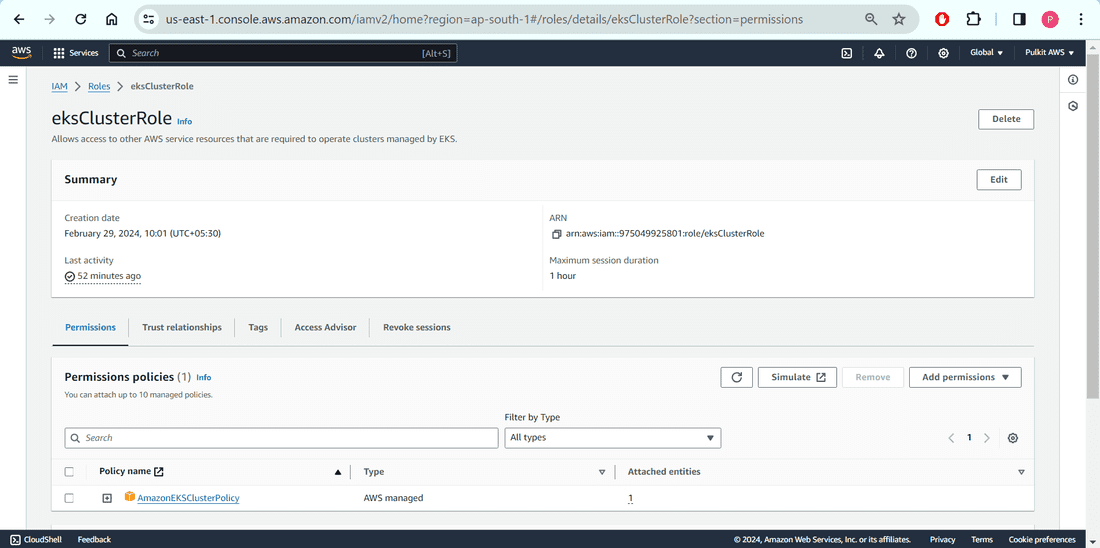
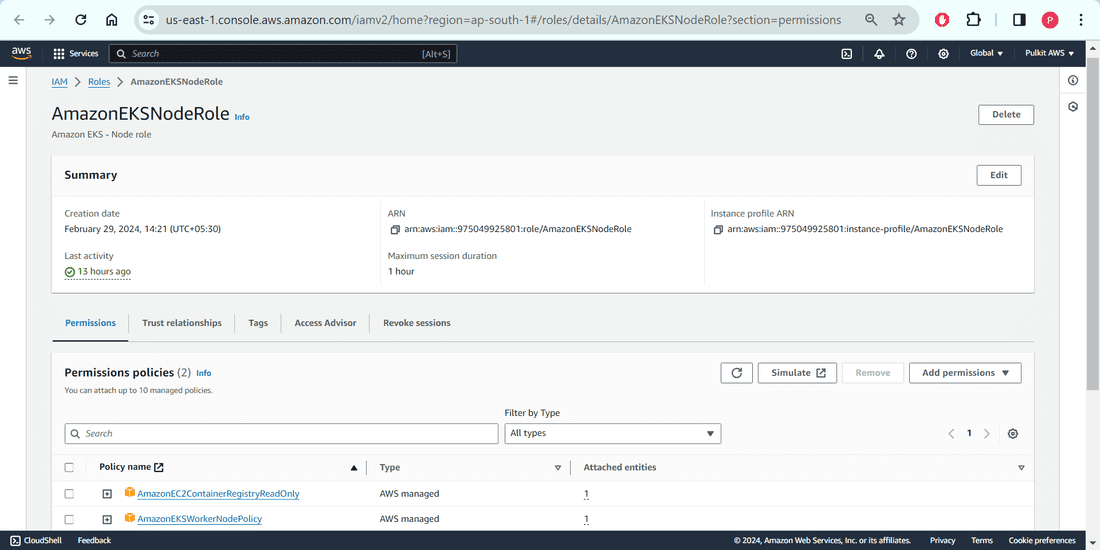
Establishing the role for creating node group. The cluster role can be created via the AWS CLI or the AWS Management Console.
- Go to IAM Management Console.
- Navigate to "Roles" in the left navigation pane and click on "Create role".
- On the "Select type of trusted entity" page:
- Choose "AWS service" under "Select type of trusted entity".
- Select "EC2" under "Use case" and click "Next".
- On the "Attach permissions policies" page:
- In the "Filter policies" box, enter "AmazonEKSWorkerNodePolicy".
- Check the box next to "AmazonEKSWorkerNodePolicy" in the search results.
- Repeat the process for "AmazonEC2ContainerRegistryReadOnly".
- Click "Next" to proceed.
Install and Configure kubectl
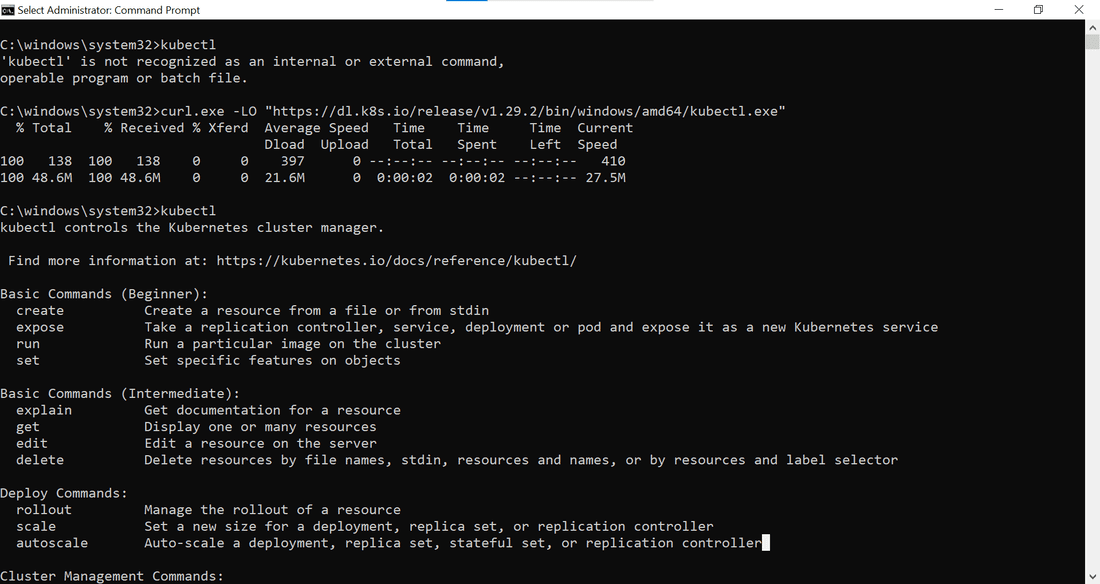
**Step 1: Download kubectl 1.29.2, the most recent 1.29 patch release. Or, use this command if curl is installed on your system:
curl.exe -LO "https://cdn.dl.k8s.io/release/v1.29.2/bin/windows/amd64/kubectl.exe"
**Step 2: Please verify it in terminal using following command -
kubectl version --client OR kubectl
Step-by-Step to Create an Amazon EKS Cluster
In order to create AWS EKS Cluster, please follow the snapshots. We will be creating Kubernetes Cluster on AWS with the name "DevScripter2024" and we attach 2 nodes with it of average configurations, just for demonstration purpose. The node group name will be "devscripter2024-node-group". You can add as many nodes as you can using different node groups and different configurations as per the organization needs.
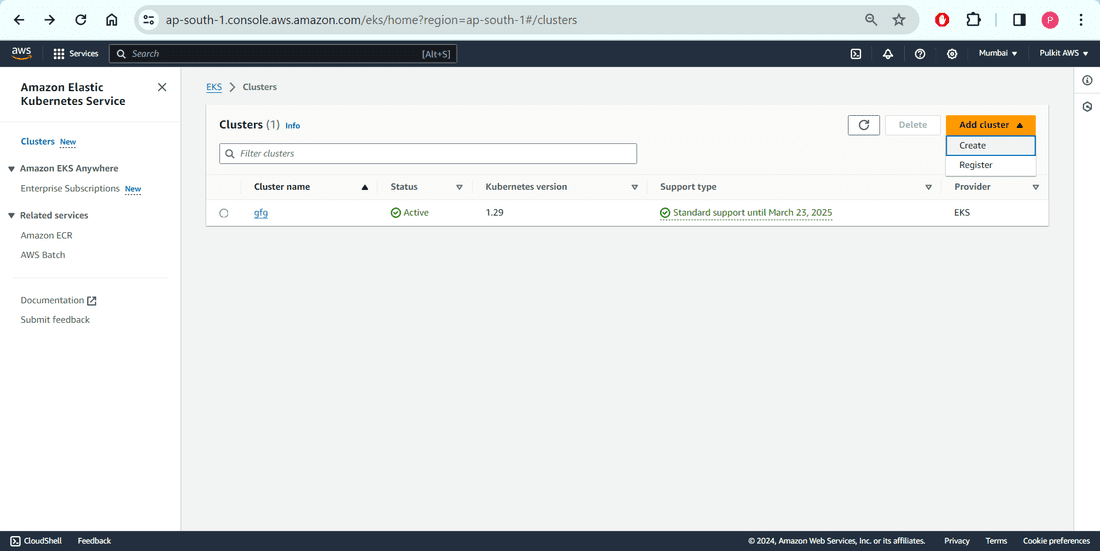
**Step 1: Please click on "Add Cluster" then "Create".
**Step 2: Mention the name you want to give to your cluster. I am giving "DevScripter2024". Choose your cluster role too.
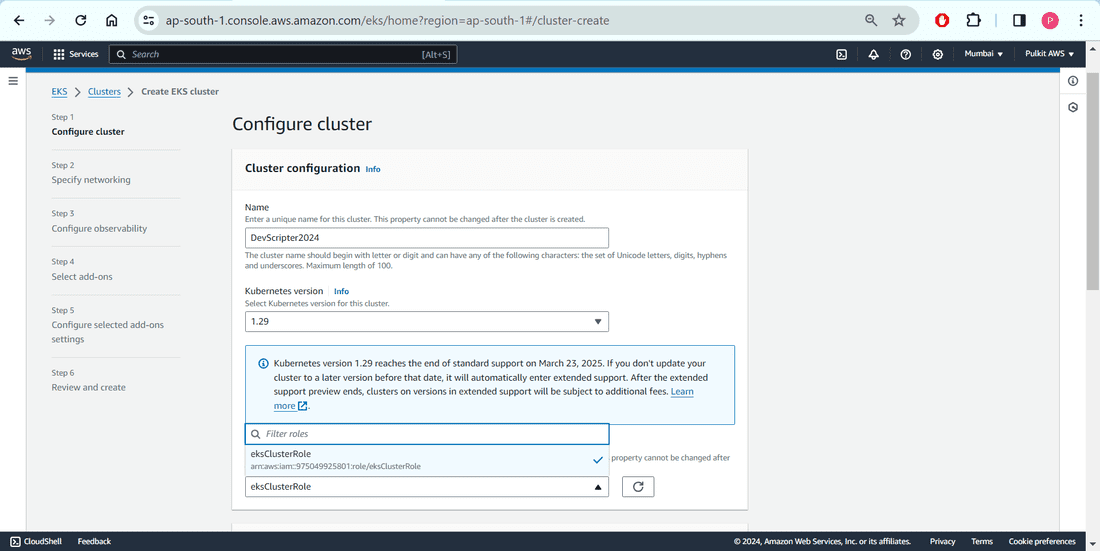
**Step 3: I will keep all the configurations default as this is for demonstration purpose. You can update as per your organization`s requirements.
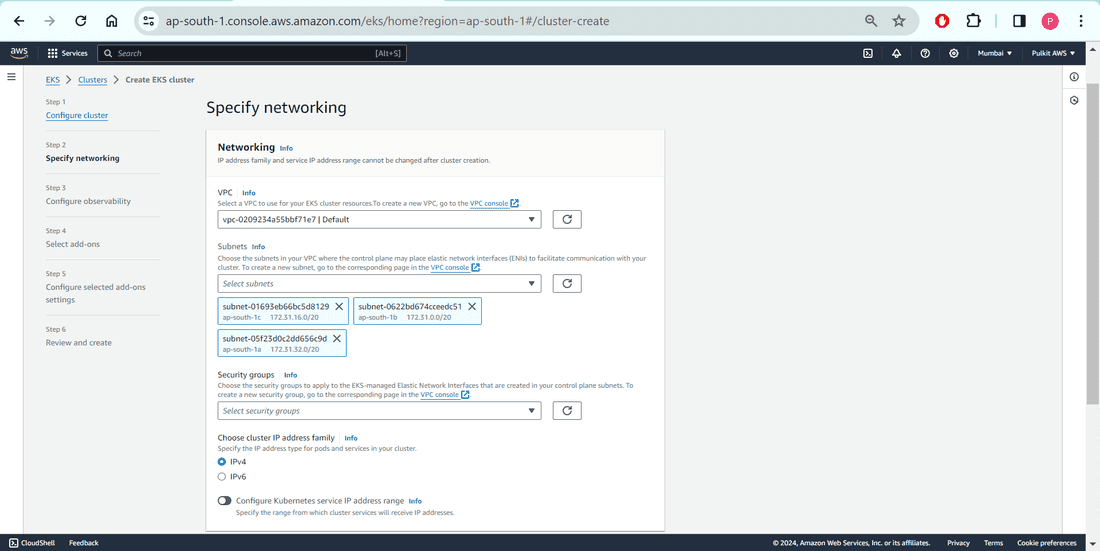
**Step 4: I will keep all the configurations default as this is for demonstration purpose. You can update as per your organization`s requirements.
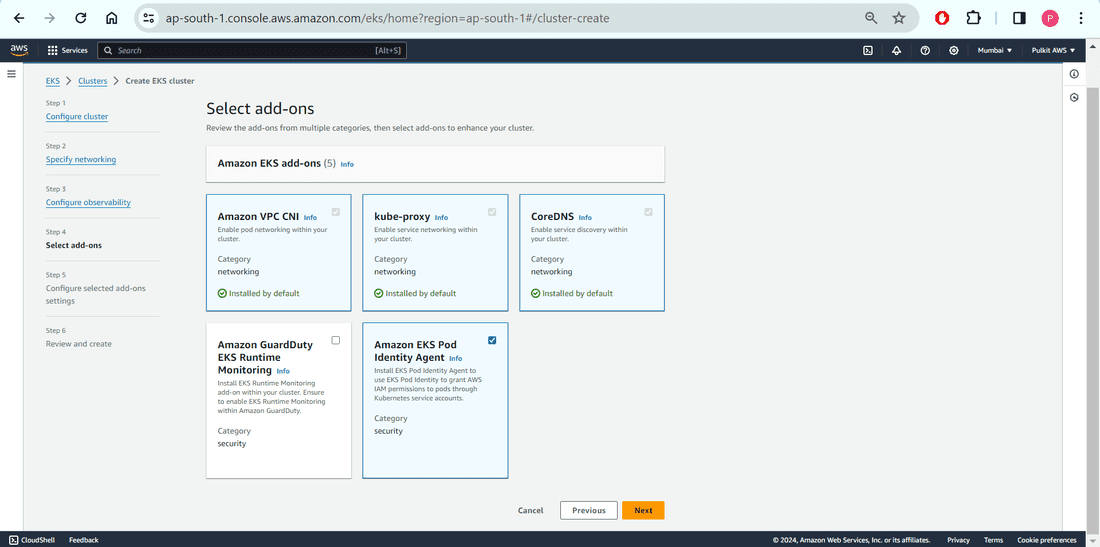
**Step 5: I will keep all the configurations default as this is for demonstration purpose. You can update as per your organization`s requirements.
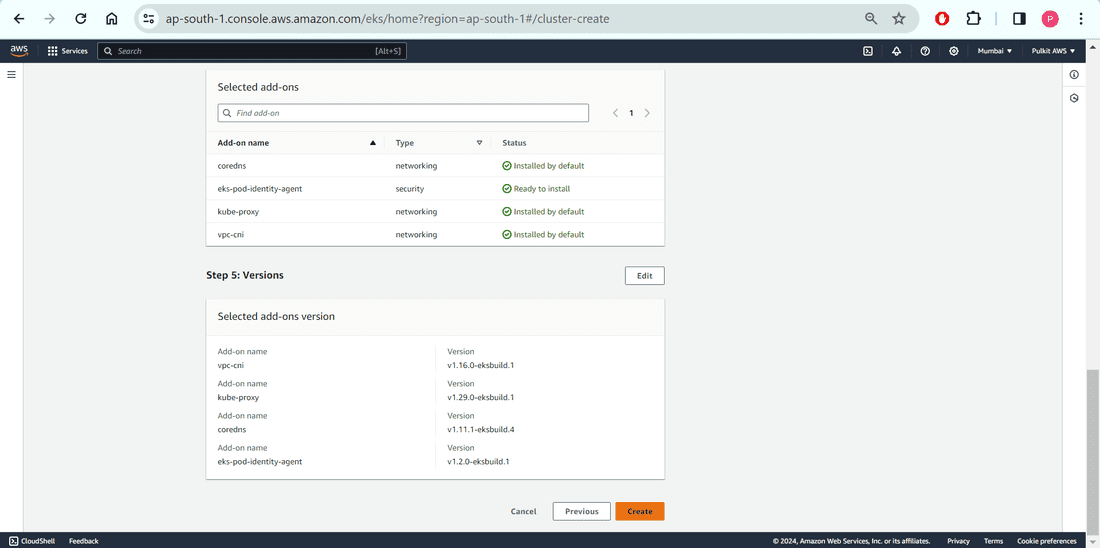
**Step 6: It will take around 15-20 minutes to spin up. Please wait.
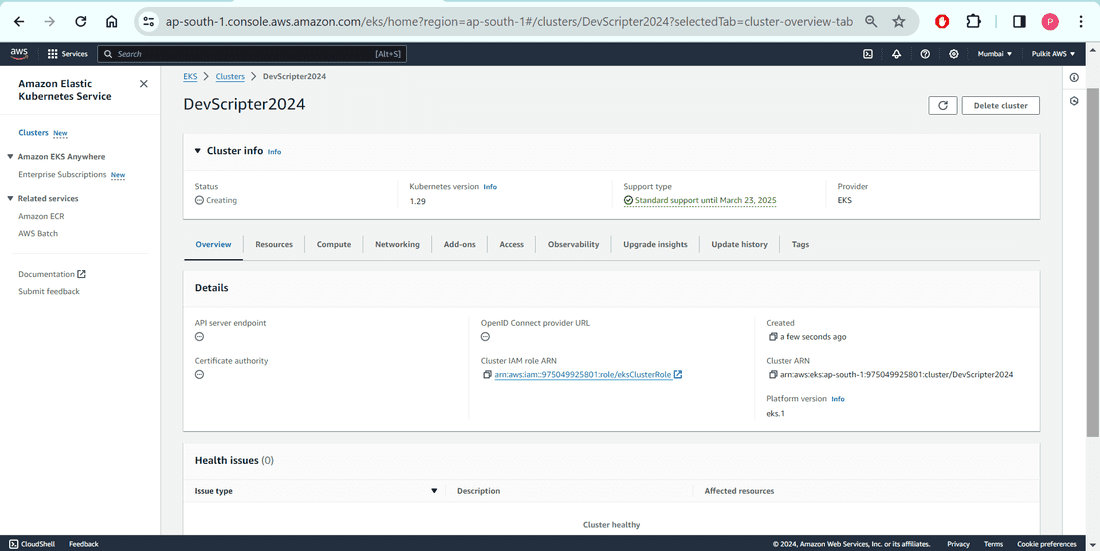
**Step 7: Fantastic Job! It is up and running with Status "Active". Its time to add the Nodes (via NodeGroup, IAM Role). Please see right below corner of the snapshot.
.png)
Step-by-Step to Configure Worker Nodes
**Step 1: Start configuring node group.
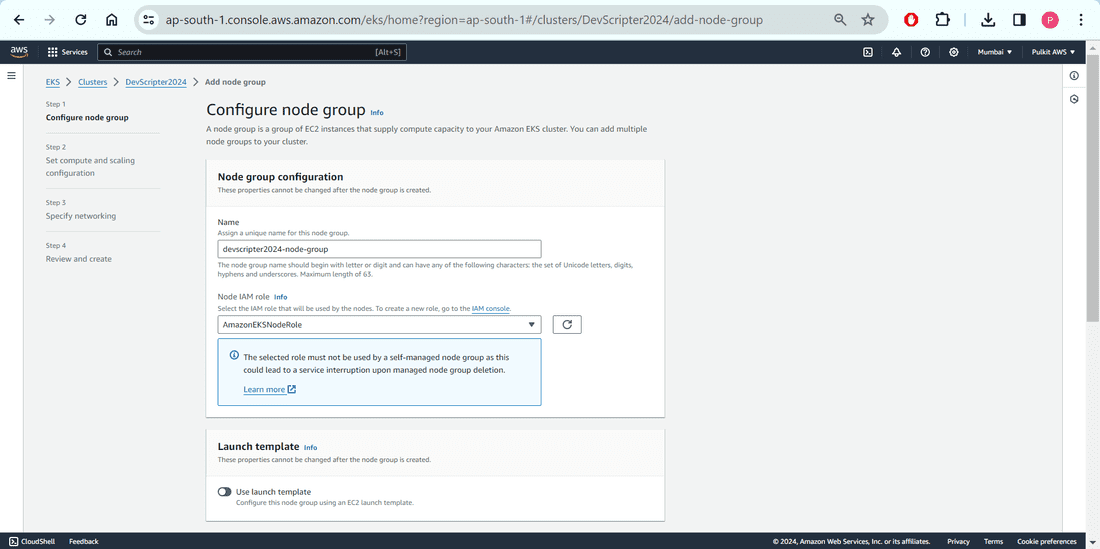
**Step 2: I will keep all the configurations default as this is for demonstration purpose. You can update as per your organization`s requirements.
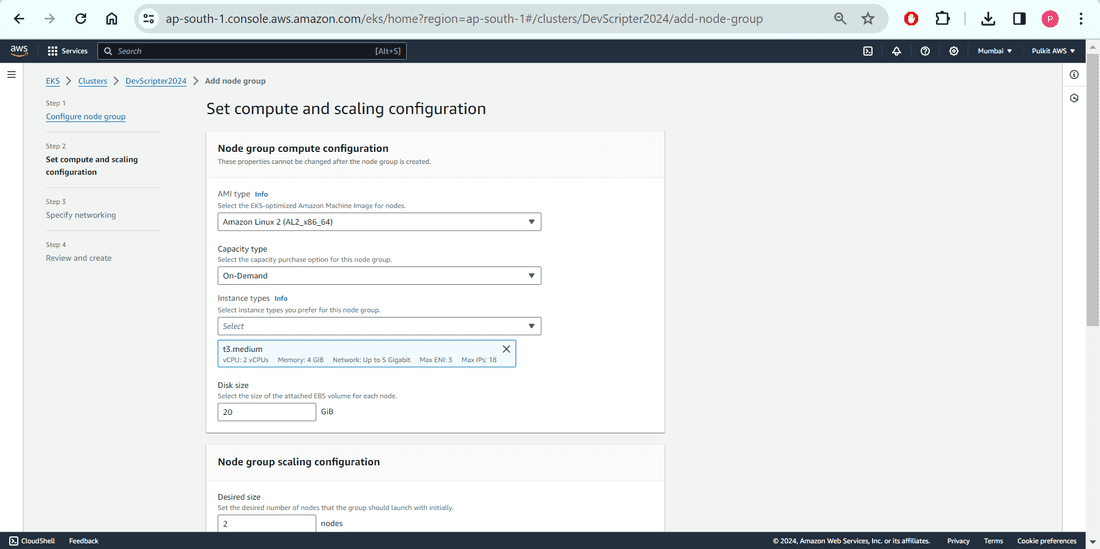
**Step 3: I will keep all the configurations default as this is for demonstration purpose. You can update as per your organization`s requirements.
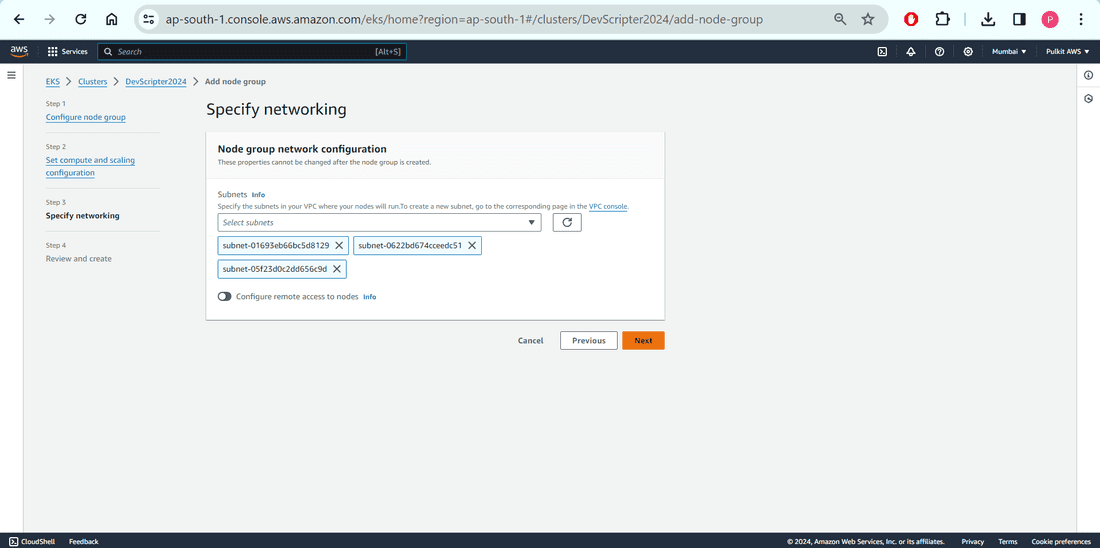
**Step 4: I will keep all the configurations default as this is for demonstration purpose. You can update as per your organization`s requirements.
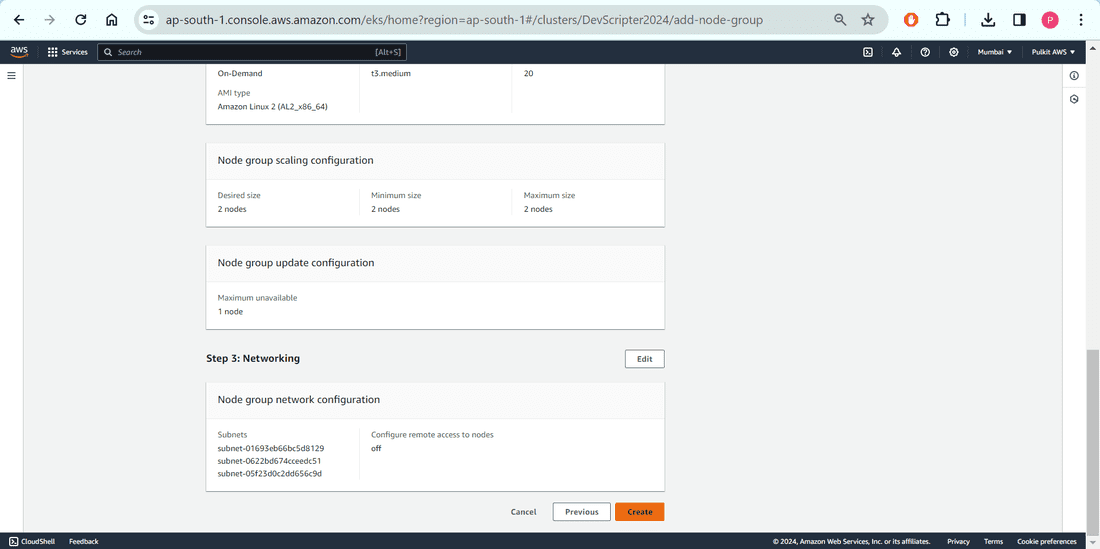
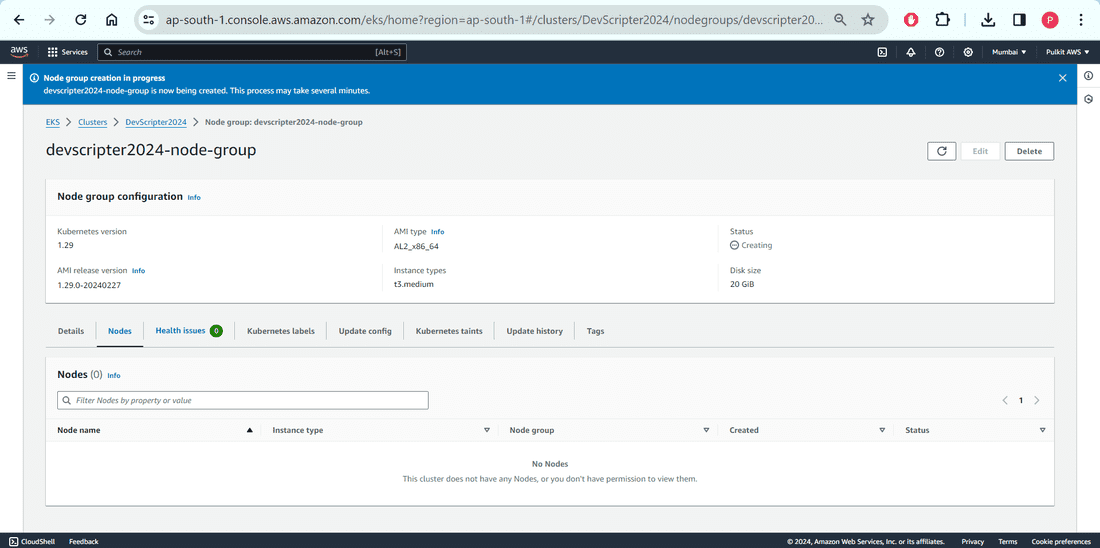
**Step 5: Good work! After couple of minutes, you will see the node ready here.
Authenticate and Access the Cluster
1. Please fetch the Access Key and Secret Key ID from the "Security Credentials" -> "My security credentials" -> "Access keys"
2. Please set in the terminal.
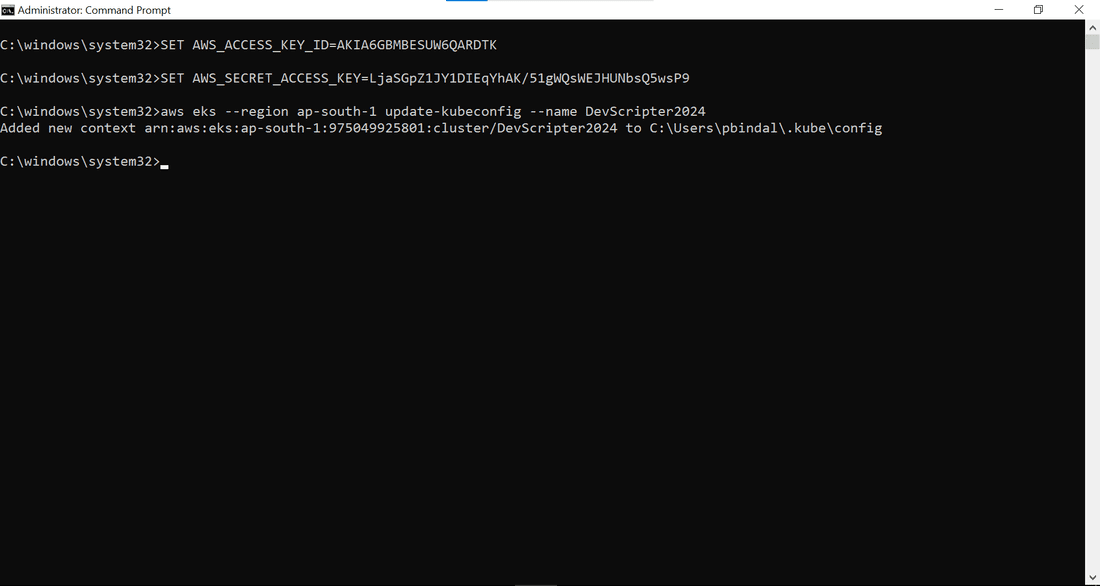
3. Login to the cluster using the command
aws eks --region ap-south-1 update-kubeconfig --name DevScripter2024
4. This verifies the we have successfully connected to our Kubernetes Cluster "DevScripter2024".
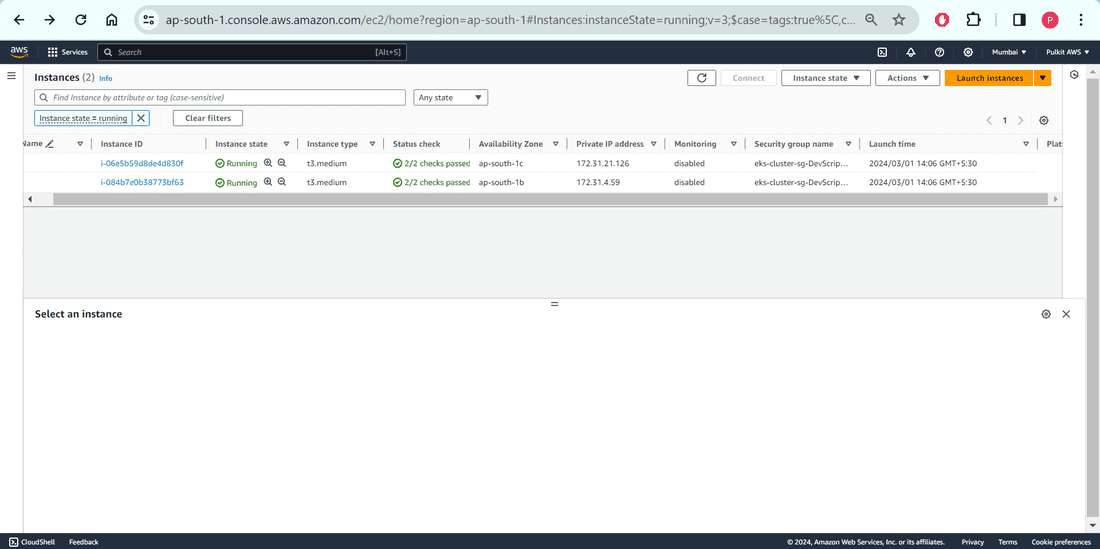
5. Let`s find out the nodes.
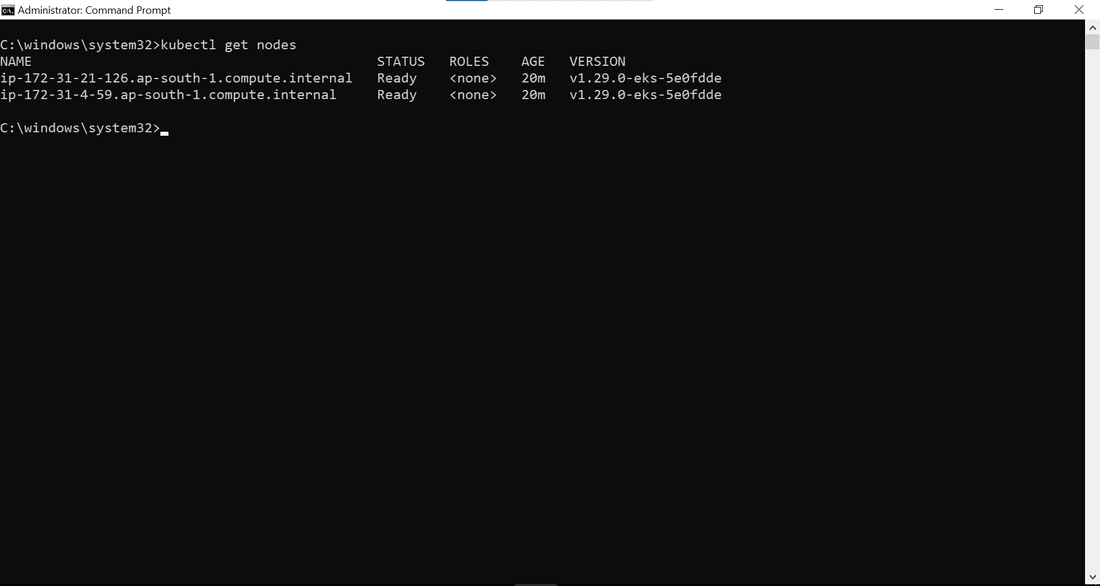
6. Nodes are nothing but running EC2 Instance at the backend. Please check and compare Private IP Address and Status. (This snap and the previous one, for better understanding)
Verify Cluster Configuration
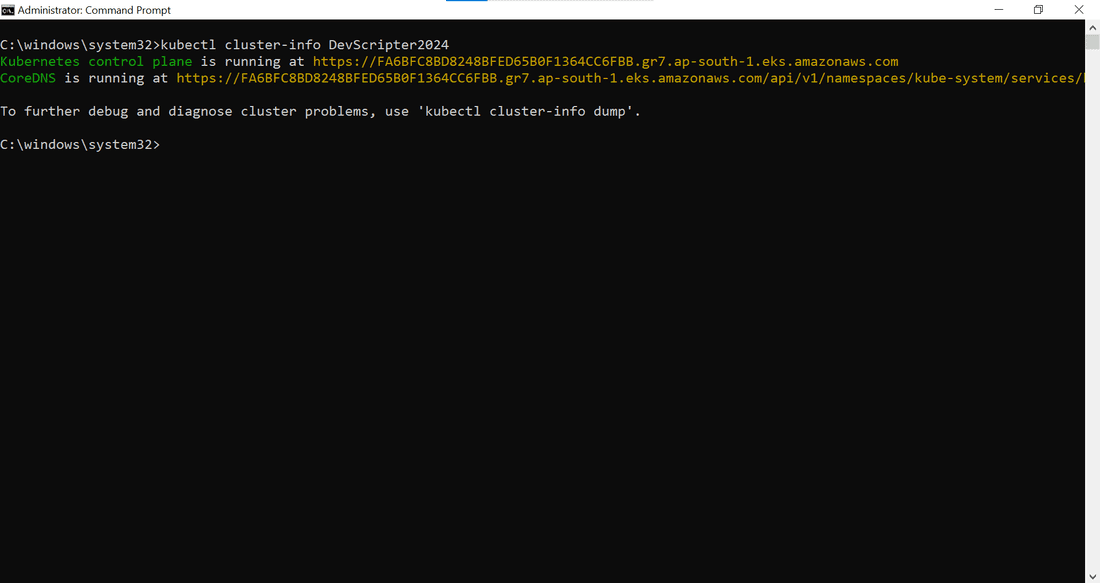
1. Its time to verify the cluster configuration.
Benefits of Amazon EKS
- **Managed Service: EKS handles the setup, operation, and maintenance of Kubernetes clusters, reducing operational overhead.
- **High Availability: Ensures reliability with a highly available and secure control plane spread across multiple AWS Availability Zones.
- **AWS Integration: Seamlessly integrates with AWS services like IAM, CloudWatch, and VPC for enhanced security, monitoring, and networking.
- **Scalability: Easily scales applications using Kubernetes tools and AWS Auto Scaling, allowing dynamic adjustment of resources.
- **Compatibility: Fully compatible with standard Kubernetes, enabling the use of existing tools, plugins, and applications without modification.
Pricing for Amazon EKS
Amazon EKS pricing includes charges for the Kubernetes control plane and the resources used in your cluster.
- **Control Plane: $0.10 per hour for each Amazon EKS cluster. This charge covers the Kubernetes master nodes and the EKS API.
- **Worker Nodes: You pay for the Amazon EC2 instances or AWS Fargate used as worker nodes. EC2 pricing depends on instance type, storage, and data transfer. Fargate pricing is based on the vCPU and memory resources consumed by your pods.
- **Additional AWS Resources: Charges apply for other AWS resources used in conjunction with EKS, such as load balancers, S3 storage, and EBS volumes.
- **Data Transfer: Standard AWS data transfer rates apply for data transferred in and out of EKS clusters.
Conclusion
In conclusion, Amazon EKS (Elastic Kubernetes Service) simplifies the deployment, management, and scaling of containerized applications using Kubernetes on AWS infrastructure. By automating repetitive procedures and providing a reliable platform for orchestrating containerized workloads, Amazon EKS streamlines the process of running applications, allowing users to focus on their core tasks without worrying about infrastructure management. With easy setup and configuration, along with seamless integration with AWS services, Amazon EKS offers organizations a powerful solution for modernizing their application infrastructure and achieving scalability and efficiency in the cloud.